This is really nice and simple and not to be confused with your Documents > Electronic Arts > The Sims 4 folder which contains your saves, Mods and all user data. This the game installation location:
open EA App and login
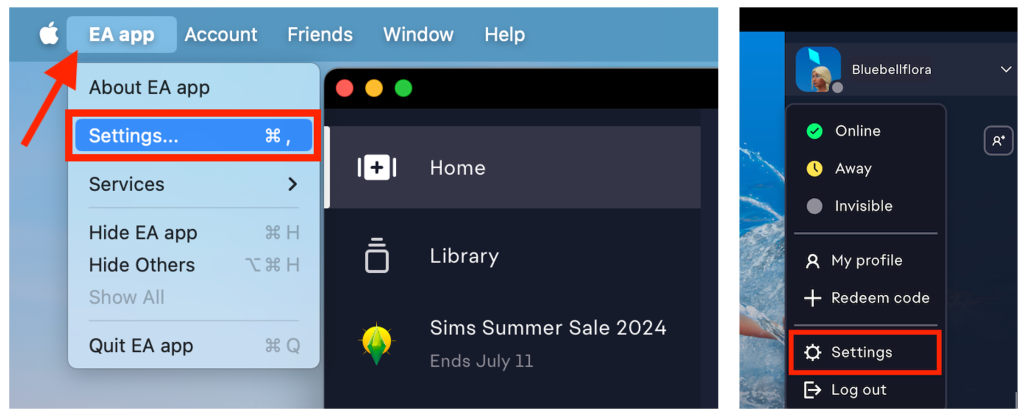
either click on EA App > Settings in the menu bar or click on your user thumbnail in the app top right corner and then Settings.
In Settings click on the Download tab then Edit next to Install location.
a Finder window will pop up. Navigate to where you would like your games installed to, click on the location, such as Applications or Applications > EA Games, then click Open. If you want to install the game on an external drive make sure it is mounted and showing in the Finder sidebar and simply click on it then select Open.
The install location will have now changed and reflect the new location in EA App.
If you are prompted to allow EA App access to removable volumes when changing to the external drive, click Allow.
EA App has a built in recovery tool that clears cache and other files that may cause issues with launching and running the app or Sims 3 or Sims 4. The tool is great but doesn’t clear all related files, leaving some residual ones behind. To start from a clean slate it’s preferable to trash all the files. This will not affect your game library within EA App, your games will still remain installed. Furthermore, the migration to EA App from Origin left behind some residual files. The steps below will remove all EA App and Origin files ensuring a clean launch next time you open EA App.
Never use 3rd party apps that claim to “clean” your Mac of unwanted files or uninstall apps for you. They can trash files they shouldn’t, potentially destabilising the operating system and possibly other apps, and leave behind relevant files that should be removed. These type of “cleaning” apps are typically used and suggested by Windows or past Windows users. They are absolutely not recommended in macOS and not needed.
If you want to completely uninstall EA App trash the EA App wherever you have it installed, usually the main Applications folder by default, and then follow these instructions to trash all the residual files before re-downloading and installing.
The main files we’re going to trash are located in two separate locations on your Mac – the User Library folder and the Macintosh HD Library folder. There are several different ways to access these Library folders, below is just one method. Make sure you do not have EA App open whilst trashing these files.
1) The User Library folder:
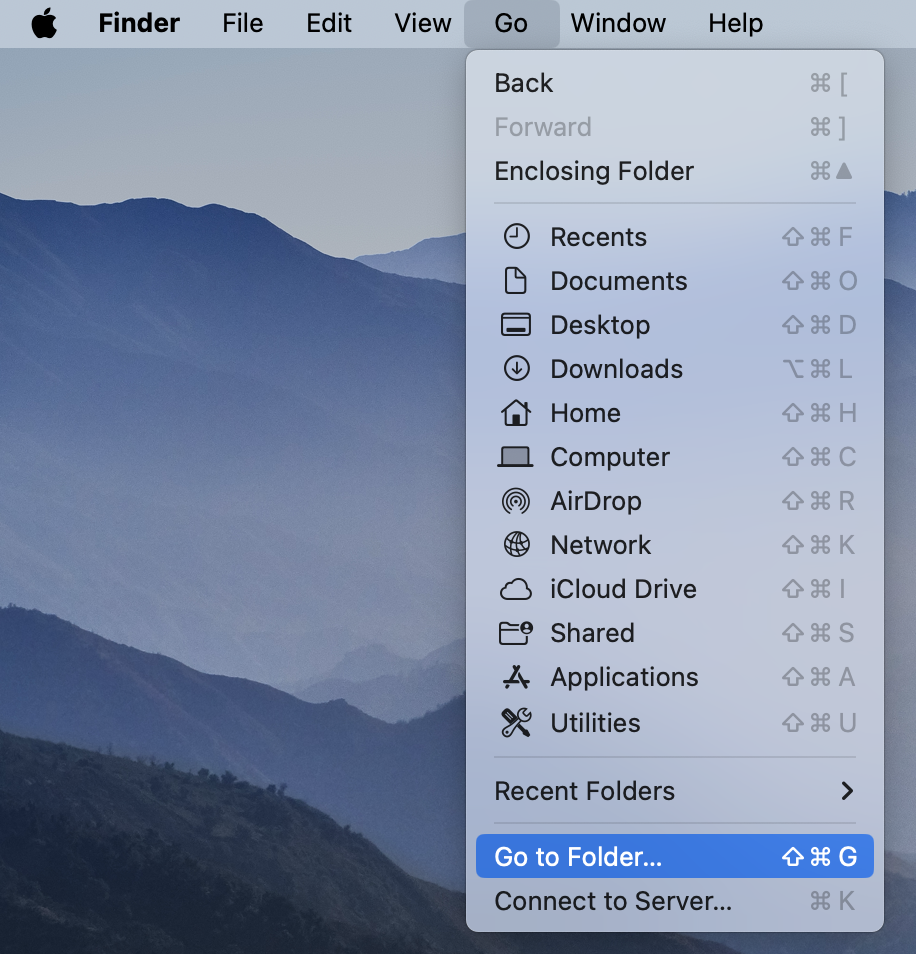
To access the User Library folder make sure you are in Finder, click on Go in the menu bar then Go to Folder:
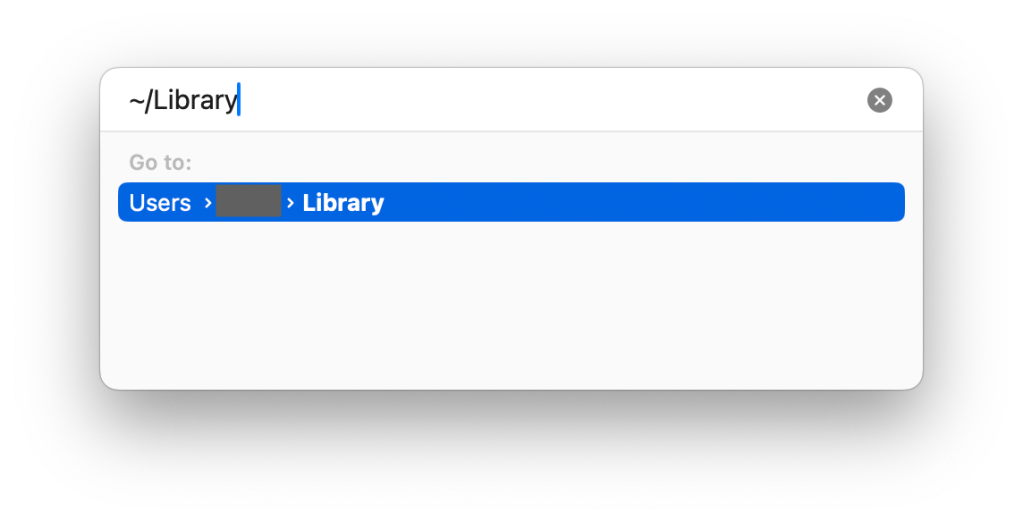
Enter ~/Library, the file path will start to appear below the text field, then hit Enter/Return:
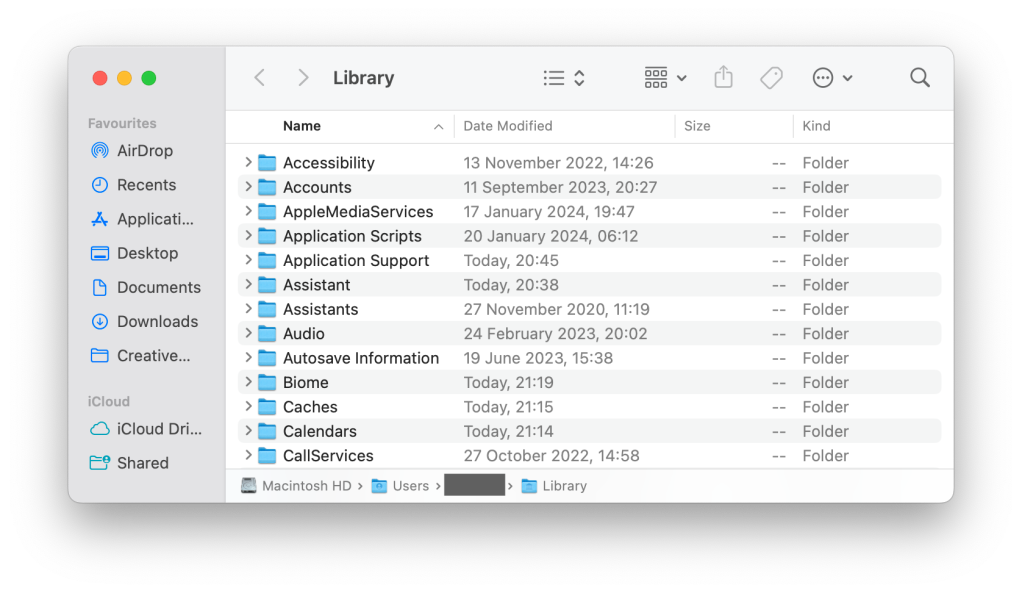
A Finder window will open the User Library folder:
Navigate to the following locations and trash the files and folders in bold and underlined. If you do not have all the files and folders listed don’t worry, just trash what you do have:
~/Library/Application Support > Electronic Arts
~/Library/Application Support > Origin
~/Library/Caches > com.ea.Origin
~/Library/Caches > EA app
~/Library/Caches > EALaunchHelper
~/Library/Caches > com.EA.EA-app-Migrator
~/Library/Caches > Origin
~/Library/HTTPStorages > com.EA.EA-app-Migrator
~/Library/HTTPStorages > com.ea.Origin
~/Library/LaunchAgents > com.ea.app.backgroundAgent.plist
~/Library/Preferences > com.ea.EACefSubProcessRenderer.plist
~/Library/Preferences > com.ea.mac.eaapp.plist
~/Library/Preferences > com.ea.Origin.plist
~/Library/Saved Application State > com.EA.EA-app-Migrator.savedState
~/Library/Saved Application State > com.ea.EALaunchHelper.savedState
~/Library/Saved Application State > com.ea.ErrorReporter.savedState
~/Library/Saved Application State > com.ea.mac.eaapp.savedState
~/Library/Saved Application State > Electronic Arts
~/Library/Saved Application State > Origin
2) The Macintosh Library folder
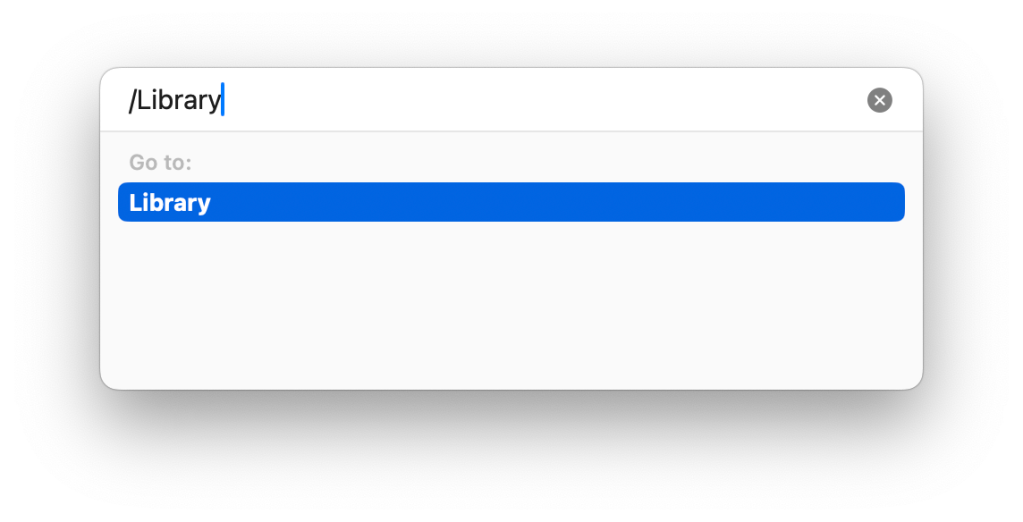
Follow the Finder > Go > Go To Folder step above and this time enter /Library in the text field and hit Enter/Return
In the Finder window that opens navigate to the following locations and trash the files and folders in bold and underlined. Again, if you do not have all the files and folders listed don’t worry, just trash what you do have. Your password may be required to trash these files:
/Library/Application Support/Electronic Arts
/Library/Application Support/Origin
/Library/Application Support/CrashReporter/com.ea.origin.ESHelper_.plist (this file will have a mixture of numbers and letters after ESHelper)
/Library/LaunchDaemons/com.ea.app.backgroundservice.plist
In addition to the above you also need to trash the following:
Macintosh HD (or whatever your internal disk is called) > Users > root > Library > Application Support and trash the Origin folder.
Macintosh HD (or whatever your internal disk is called) > Users > Shared and trash the Electronic Arts folder.
Once you’ve trashed the files, empty the bin and relaunch EA App. You will be prompted to login using your EA details and may receive prompts from macOS to enter your user password to allow EA App access, this is fine.
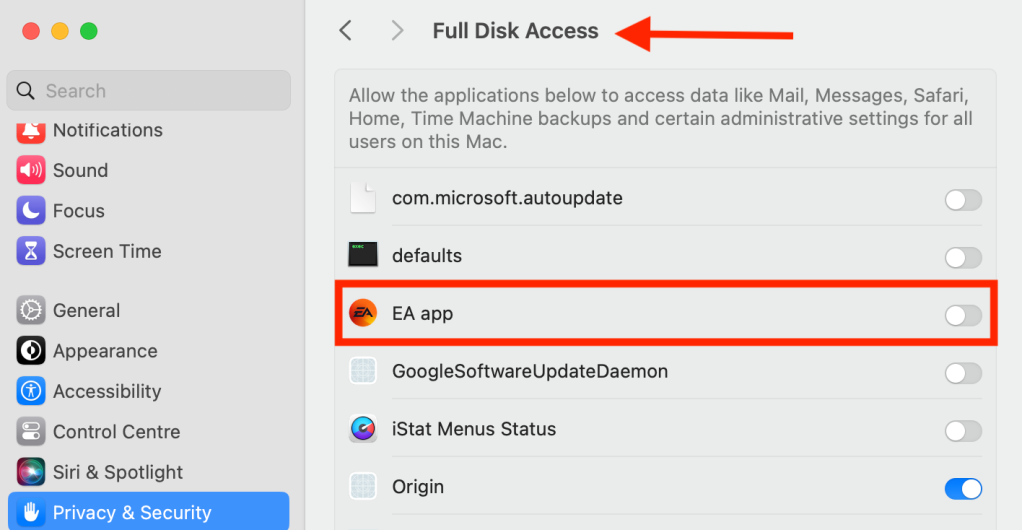
Update 3 April 2024 – This error message can also appear for users with the game installed on their internal disk. The cause is the same but you should also make sure the game you are playing through EA App, currently only Sims 3 and Sims 4, also has Full Disk Access in System Settings > Privacy & Security.
I believe this only affects users running macOS Ventura 13 and later versions of macOS due to the security settings Apple introduced in Ventura. If you’re running macOS Catalina 10.15, Big Sur 11 or Monterey 12 you may not have a problem installing your Packs and Kits.
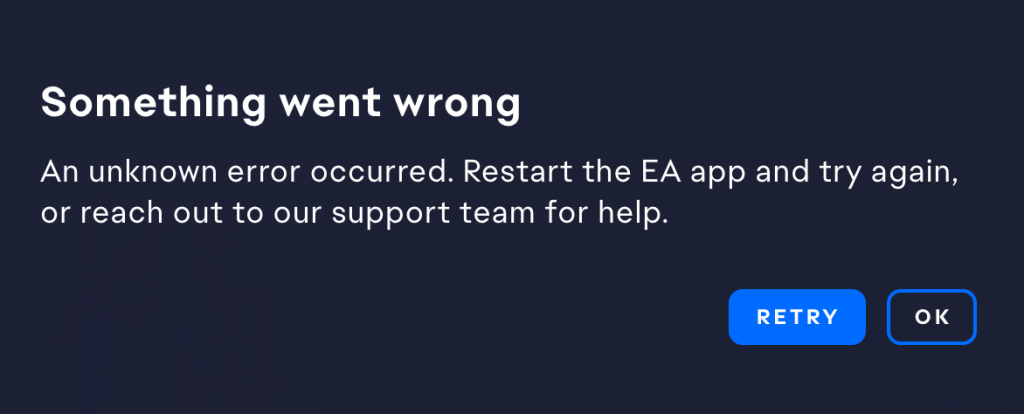
If you receive this error message when trying to download Packs and Kits to an external drive it is because EA App does not have the necessary permission to access the drive. You can easily fix this:
Open System Settings > Privacy & Security > Full Disk Access
click the toggle next to EA app to enable Full Disk Access. If you have EA App open you will be prompted to Quit and Reopen, this is fine.
you should now be able to download all your DLC onto the external drive and it will show up in a Sims 4 Packs folder.


 Bluebellflora