
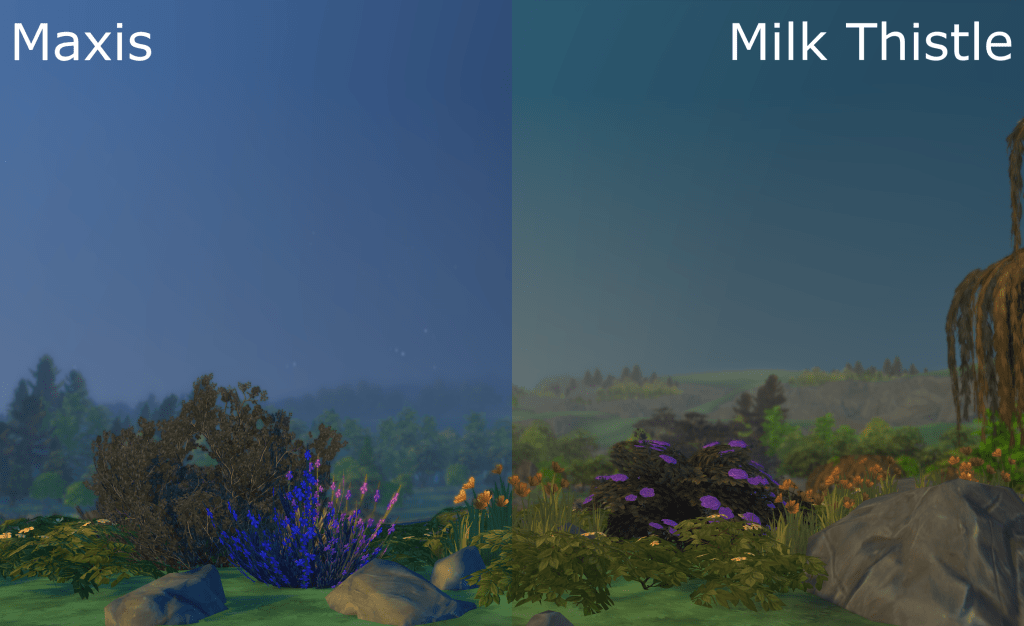
I’ve been meaning to get round to installing this lighting mod for ages but noticed the installation instructions for Mac aren’t quite accurate and there is some confusion in the comments. It’s really quick and easy to install on a Mac. This Mod replaces existing Maxis default game installation world files with Softerhaze’s edited ones. Softerhaze’s guide is here and you should refer to it for the specific Pack numbers and other useful info.
This Mod is not installed in the Mods folder as most Mods are, it replaces actual game installation files. As is always the case with Mods, make sure the lighting Mod is compatible with the current patch version of the game and if it is not run a game repair to remove the modded files until they are updated.
Setting up your folders for installation
- Download the lighting Mod from Softerhaze’s site here
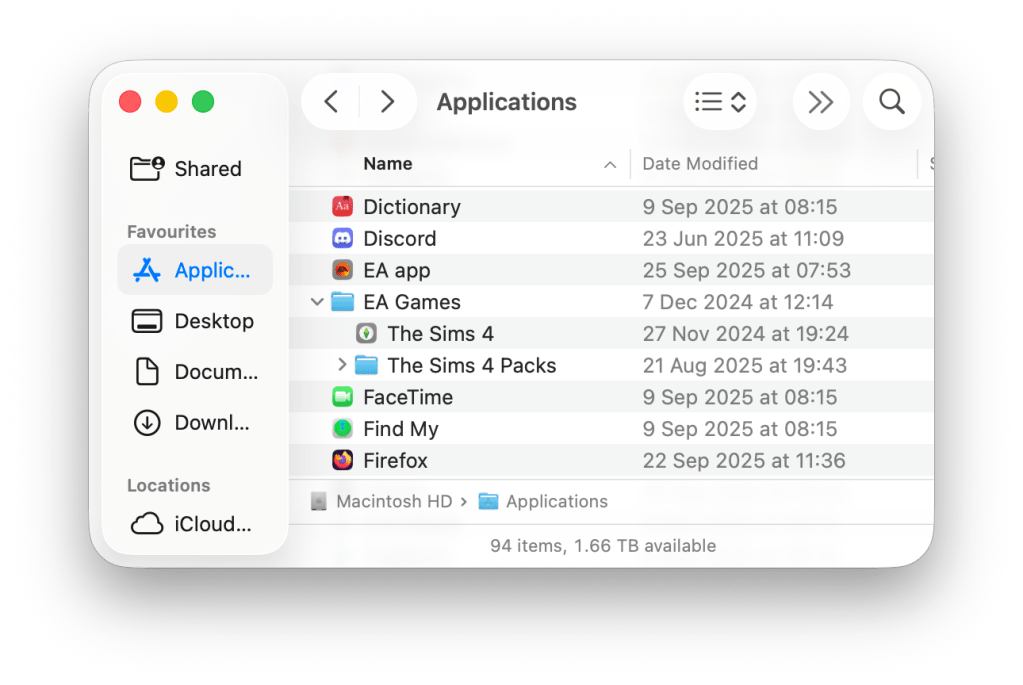
- Locate your Sims 4 base game installation. By default this will be in Applications > EA Games. You can check the location in EA App > Settings > Download
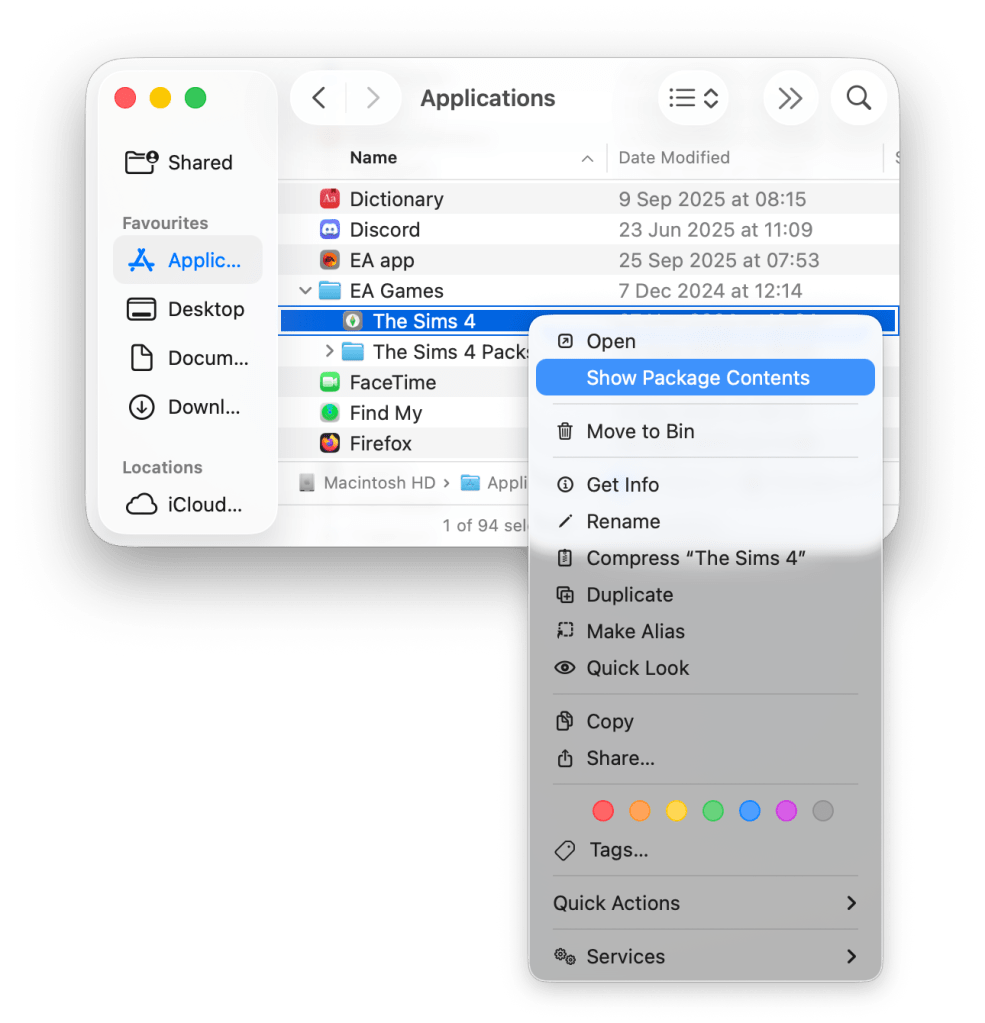
- Right click on the base game app and select Show Package Contents. Right click is secondary click in System Settings > Trackpad/Mouse. Or you can hold down the CTRL key and click once:
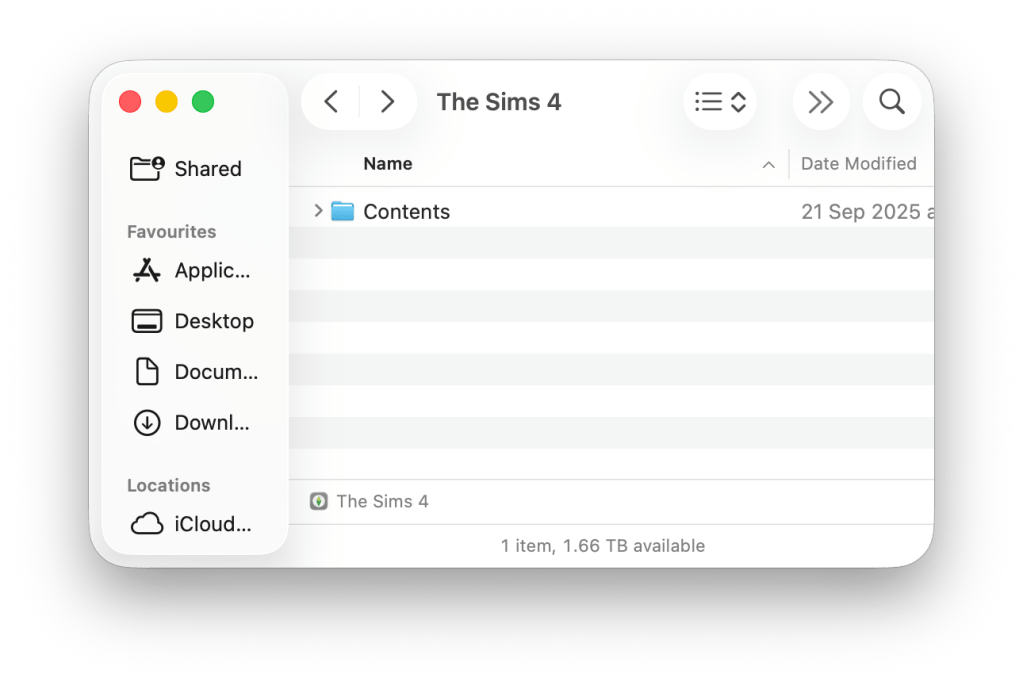
- A Finder window will open and show the Contents folder:
Replacing Base Game world files
Before replacing the existing Maxis world files with the Modded files you may want to make backup copies of the existing files in case the modded files break a specific world, but not all worlds.
- To replace the base game worlds navigate through to Contents > Data > Shared > Worlds > Area and you will see all the worlds:
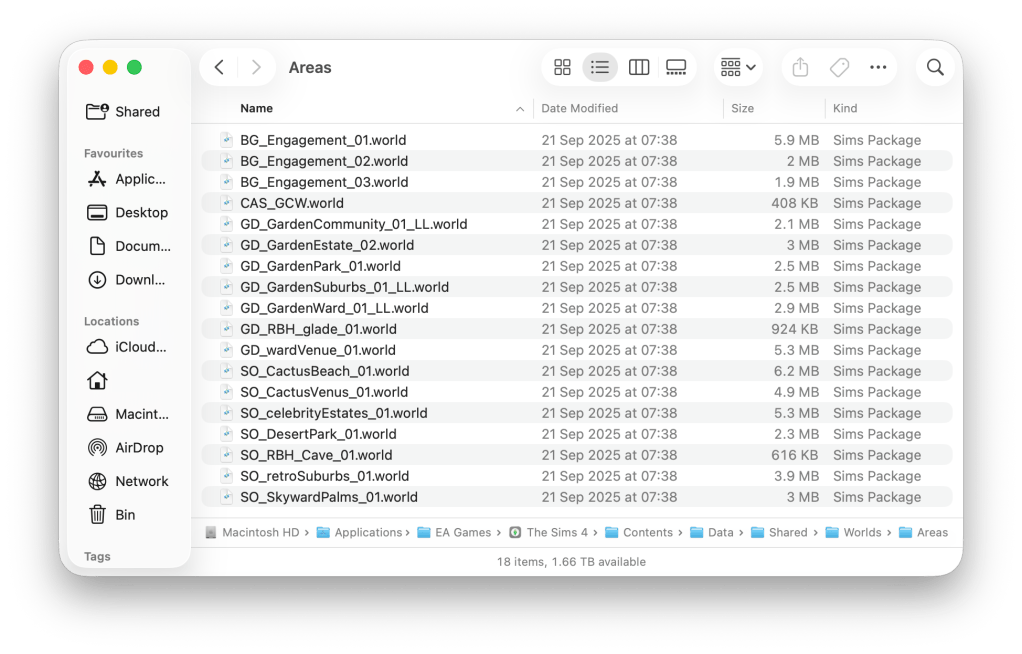
- If you want to make a backup copy of all these Maxis default files select them all Edit > Select All (CMD + A) and click on Edit > Copy (CMD + C) in the menu bar. Then navigate to where you would like to save the backed up copies and click on Edit > Paste (CMD + V).
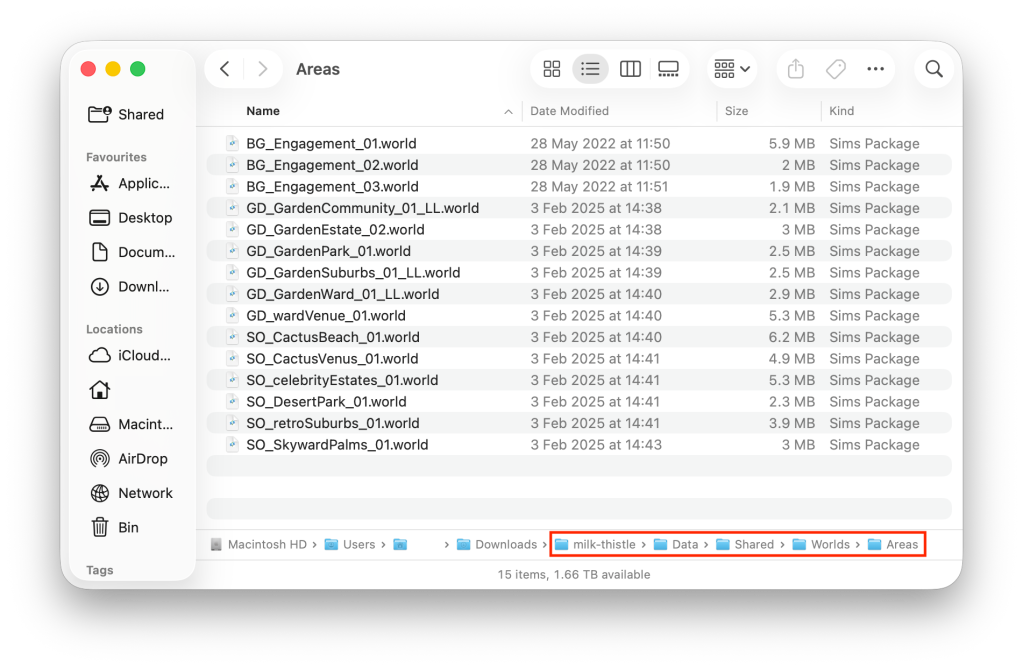
- Now open the Milk Thistle Mod you downloaded. It will be zipped. Double click to unzip and a folder will appear called milk-thistle with all the world files. Open the milk-thistle folder.
- Open the Data folder and subsequent folders until you see all the individual base game worlds and areas:
- Now go back to the other Finder window you have open where you opened the world areas folder for the base game in the previous step. Make sure you have this Finder window next to the Milk Thistle one:
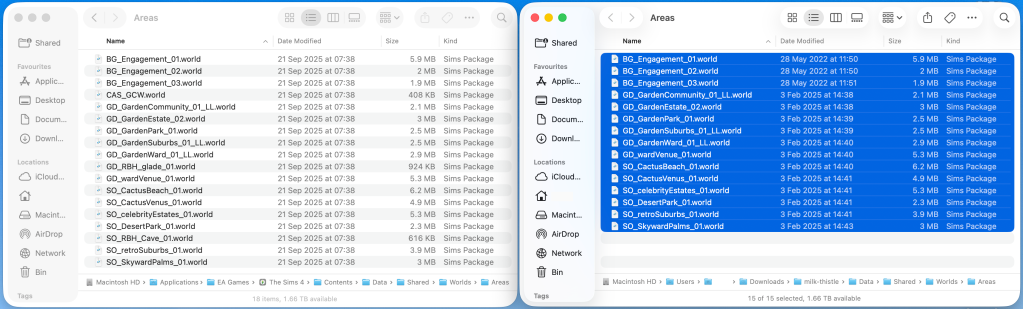
- Select all the files in the Milk Thistle > Data > Shared > Worlds > Areas folder by clicking Edit > Select All (CMD + A) in the menu bar (in above screenshot). Now drag all those files over to the other Finder window you have open for the base game. When prompted to replace files make sure you check the box next to Apply to All then click Replace:
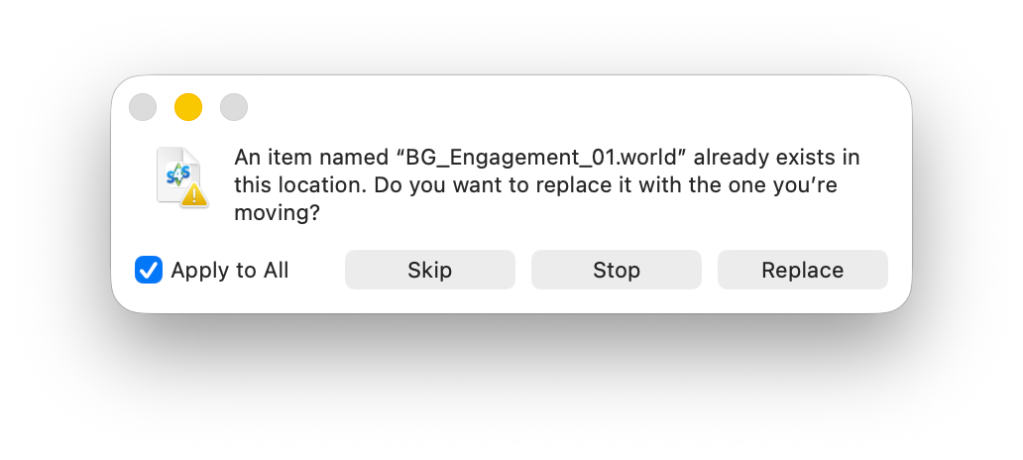
- The base game installation files will now be replaced with the Milk Thistle ones.
Replacing world files in Game Packs and Expansion Packs (DLC)
Replacing world files that came with specific Game and Expansion Packs is a little more fiddly but still simple. Before replacing the existing Maxis world files with the Modded files you may want to make backup copies of the existing files in case the modded files break a specific world, but not all worlds.
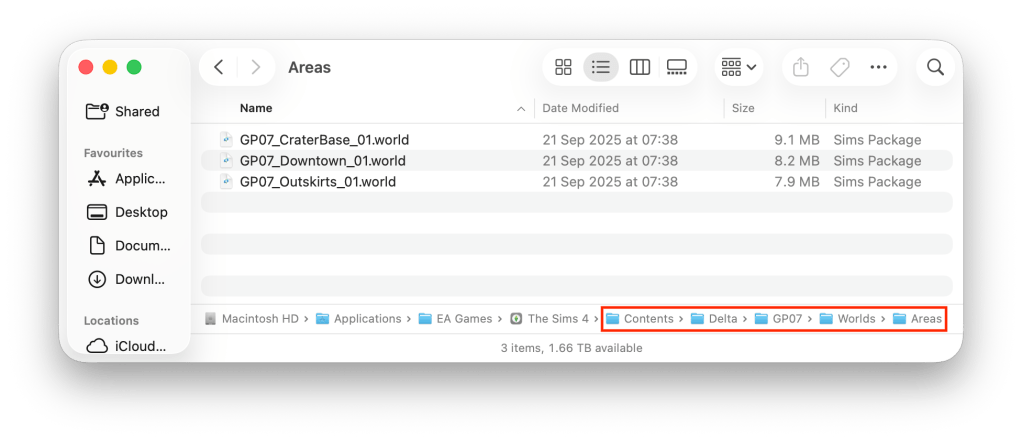
- After selecting Show Package Contents on the base game app navigate through to Contents > Delta. You will see separate folders for all the Packs.
- Choose which Pack world files you want to edit using Softerhaze’s list here. I am going to install the edited files for Strangerville so I open the GP07 folder:
- Now open the corresponding GP07 folder in the milk-thistle > Delta > GP07 > Worlds > Areas downloaded folder:
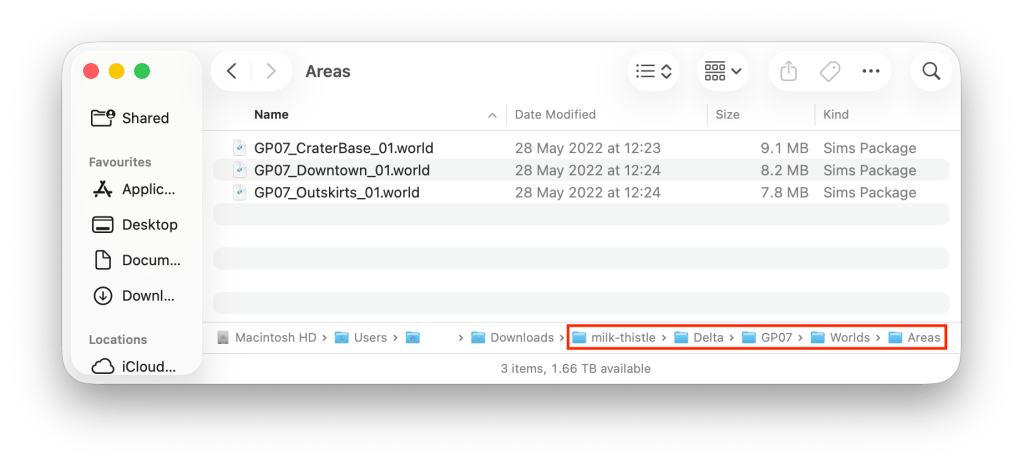
- If you want to make a backup copy of all these Maxis default files select them all Edit > Select All (CMD + A) and click on Edit > Copy (CMD + C) in the menu bar. Then navigate to where you would like to save the backed up copies and click on Edit > Paste (CMD + V).
- Same as we did for the base game Data files above, select all the files in the Milk Thistle > Delta > GP07 > Worlds > Areas folder and drag them over to the base game Finder window you have open:

- Replace the files when prompted, as above
- Repeat the above steps for all the Packs you want to edit the world files for
Reverting back to Maxis installed game files
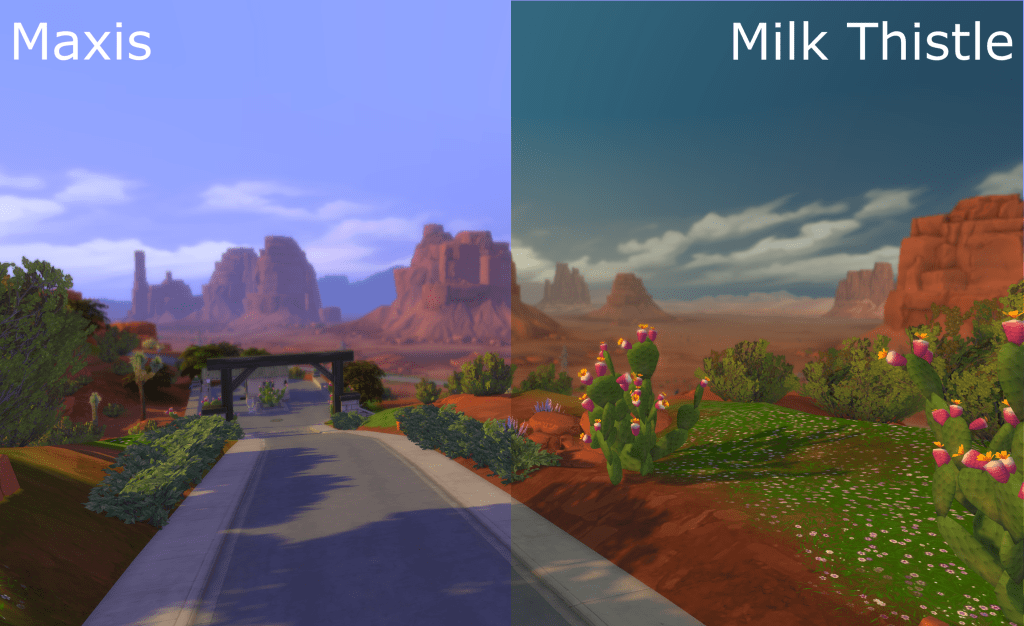
If you want to go back to the vanilla lighting in-game simply run a game repair in EA App and this will replace the modded world files with the default Maxis ones. Please note this will repair the base game and ALL Packs world files.
If you have any questions or issues with installing the files, join my Discord server for further support – https://discord.gg/EB9hZBDx34

 Bluebellflora