So my little bakery has now turned into a Parisian/Tuscan mishmash:
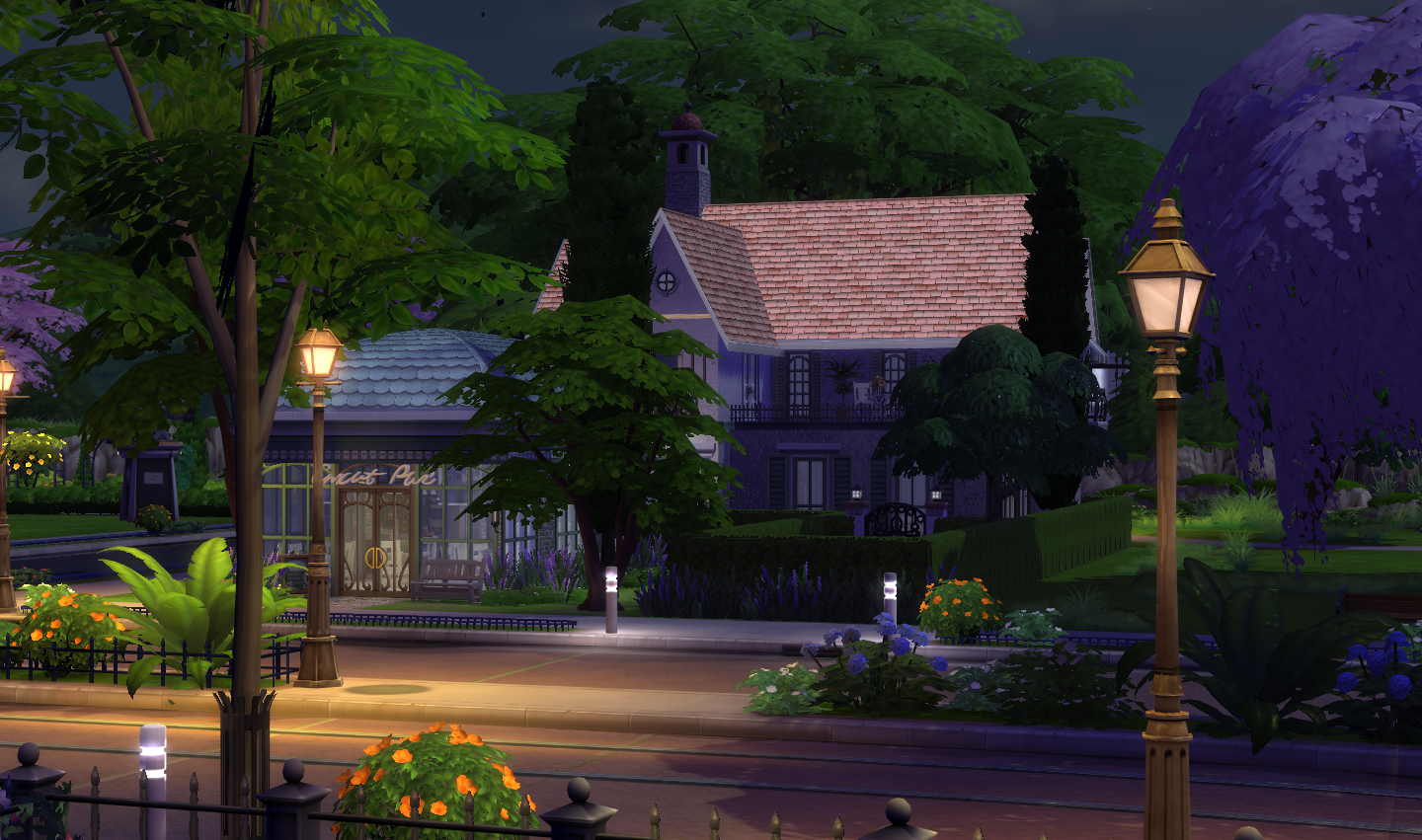
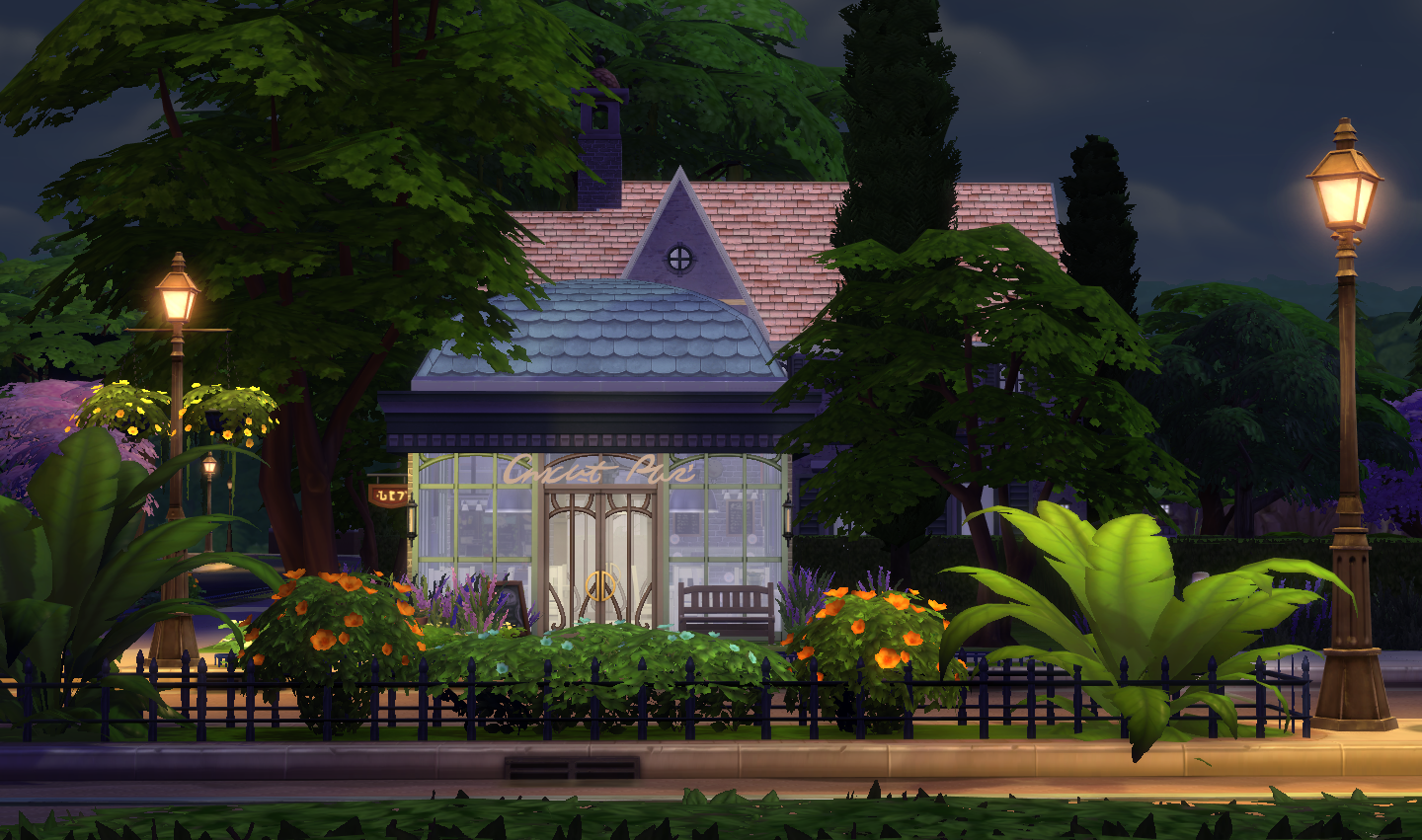 Not finished yet, quite a bit of fiddling still to do but I’m loving the look of it so far.
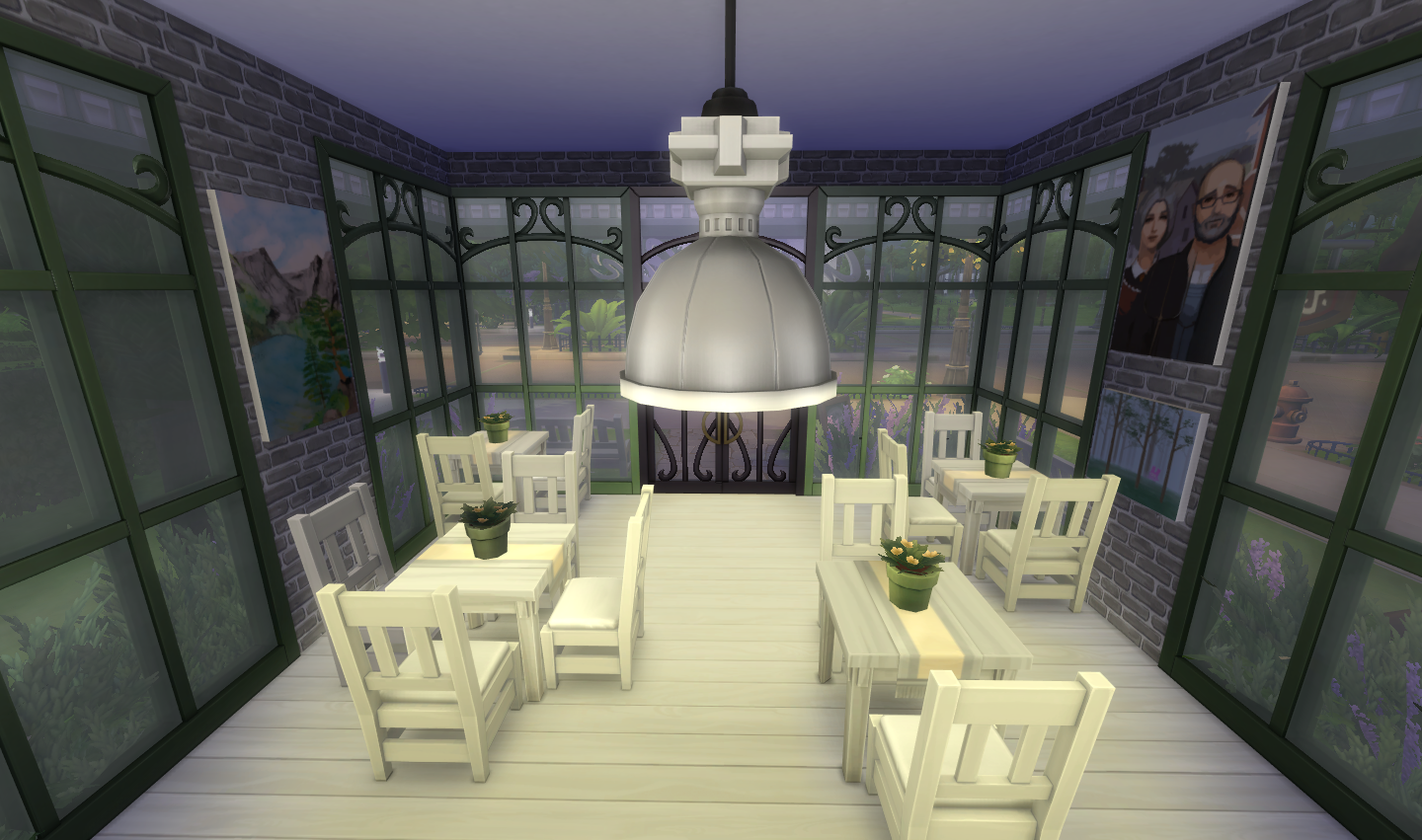
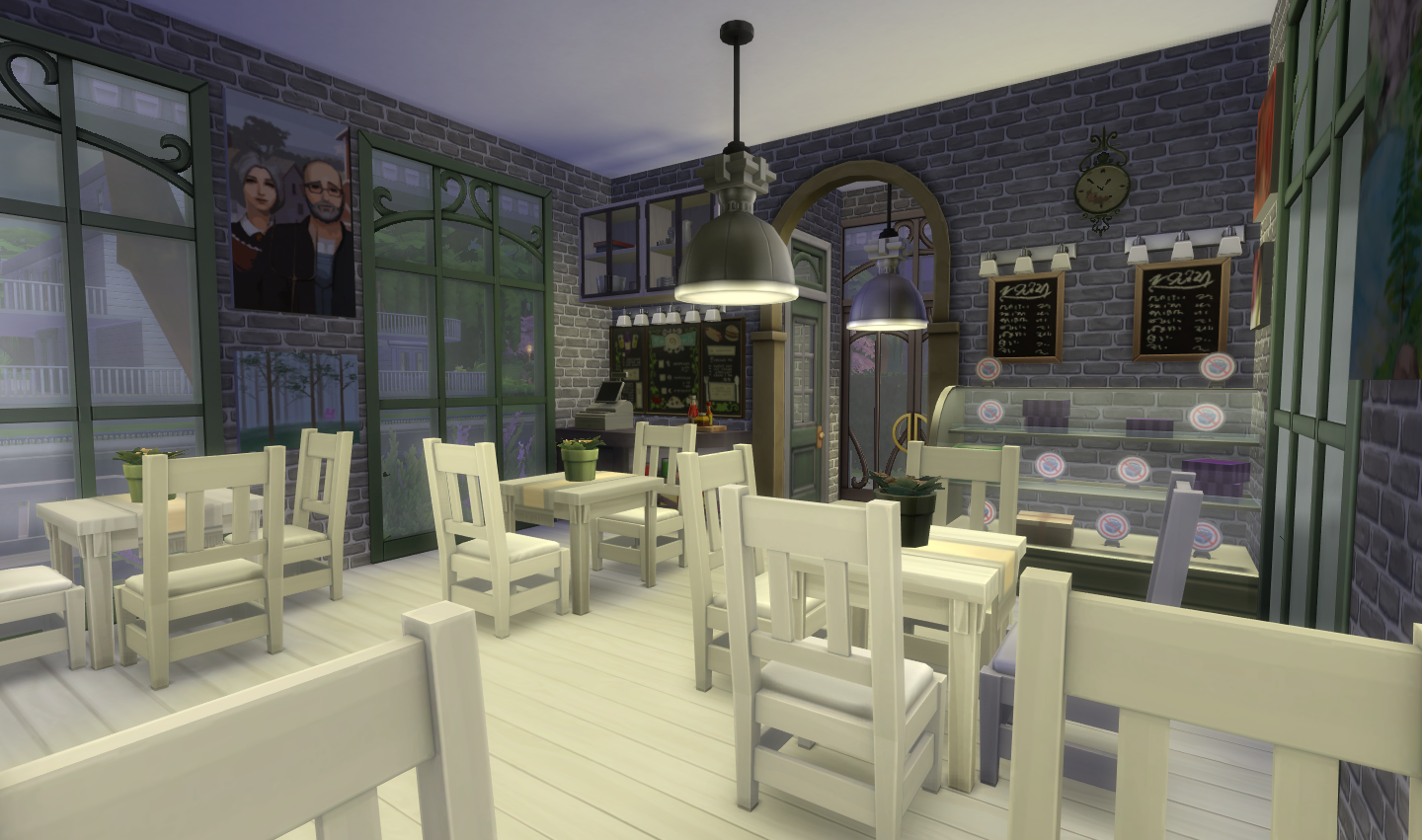
So my little bakery has now turned into a Parisian/Tuscan mishmash:
Not finished yet, quite a bit of fiddling still to do but I’m loving the look of it so far.
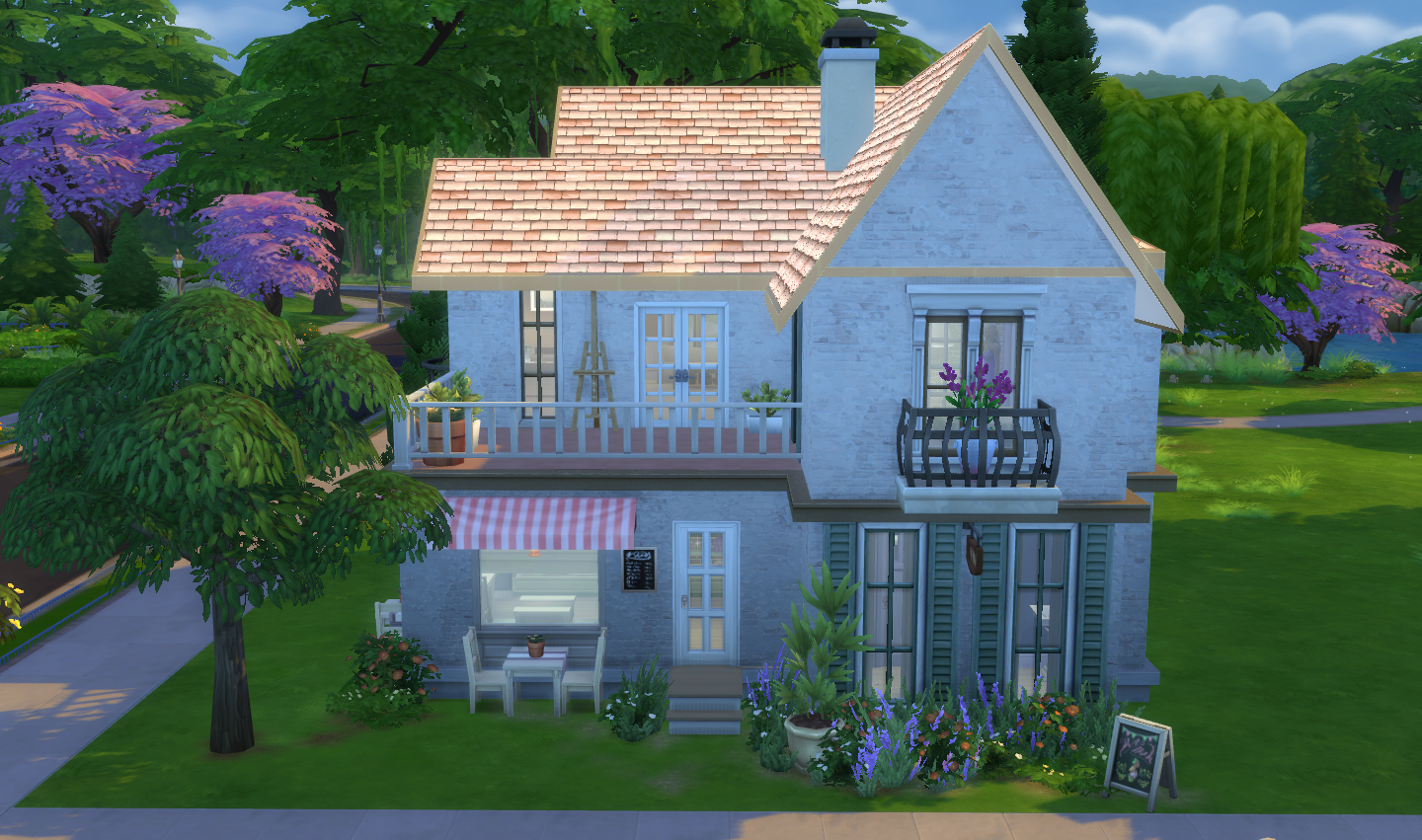
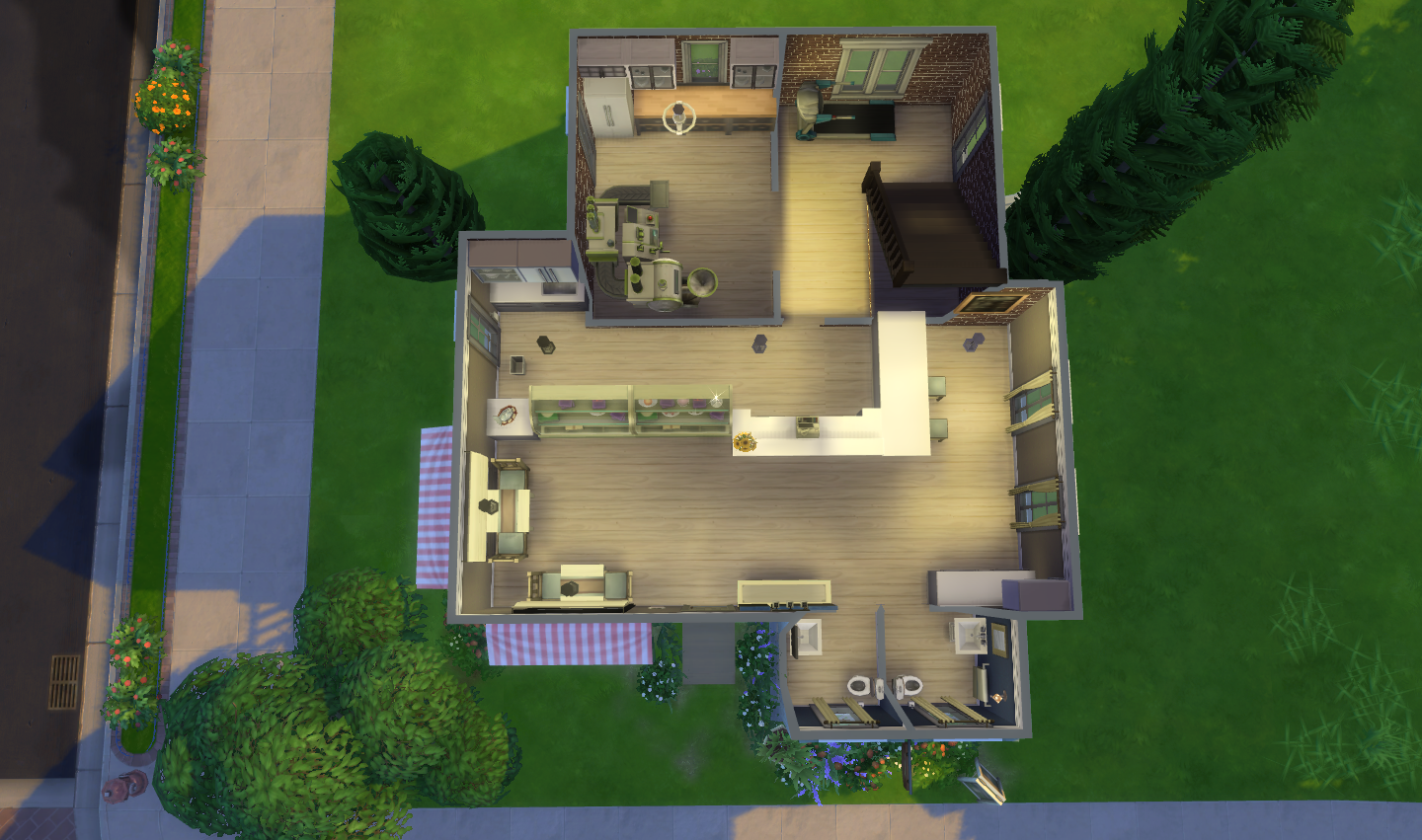
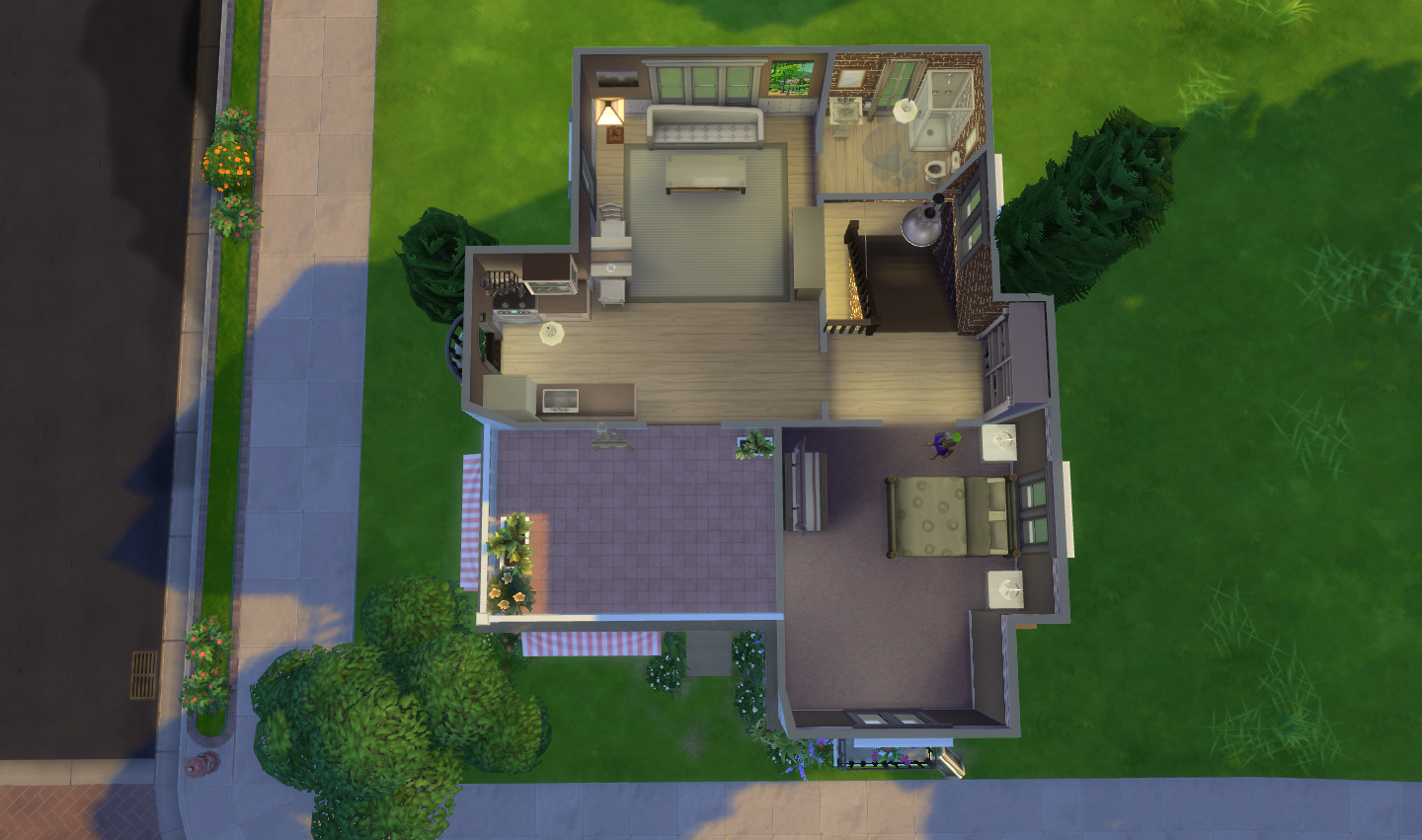
I’ve been playing around with setting up a home bakery (like pretty much the whole TS4 Simming community by the looks of it). It’s fun, and good, not to have to bother travelling anywhere to work but it’s not without its problems. Firstly I had my Sim purchase a Retail lot then built a little house with the bakery downstairs and the living quarters upstairs on the lot:
My Sim got baking, opened the shop and everything went smoothly. Customers turned up and after a while started buying stuff. Then it started going wrong. I would get the notification that a Sim wanted to pay for something but the Sim in question wouldn’t have the basket icon above their head, like this:
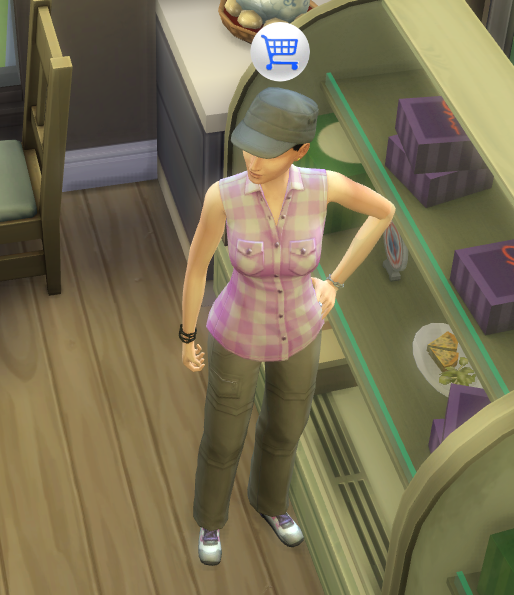
I also wouldn’t get the option to Ring Up Customer when I click on the Sim. So I have a Sim who wants to pay, according to the Notification Wall, and they’re waving their arms around looking cross, yet they have no basket icon and no interaction available. Annoyance no. 1.
As my bakery was so popular I decided to employ someone to help. I chose a Sim who was nearly maxed out in all three areas – Sales, Work Ethic and Maintenance Skill. I put them to work and they did nothing. Absolutely nothing but sit around and chat with customers, and I don’t mean in a positive sales way. Every time I set them to work ringing up customers or restocking or sales they didn’t do any of them. I fired them and employed someone else, same thing. After getting through half a dozen employees I gave up and decided to just do everything myself. Annoyance no. 2.
I quickly sold out of all my baked goods so I set to work restocking. It took all day, almost. And what’s with having to click on all the signs individually and restock them? How about being able to just click on the display unit and have an option to restock all? I’m sure we had this in Open For Business in The Sims 2. Annoyance no. 3.
My upstairs living quarters soon started filling up with nosy neighbours who loved going through my stuff. Being quite a private person, and having lots of nice shiny things, I took exception to this. My only option was to block the door from the shop to the rest of the house by adding an extra counter unit (my house only has one door to the outside world, the shop entrance):
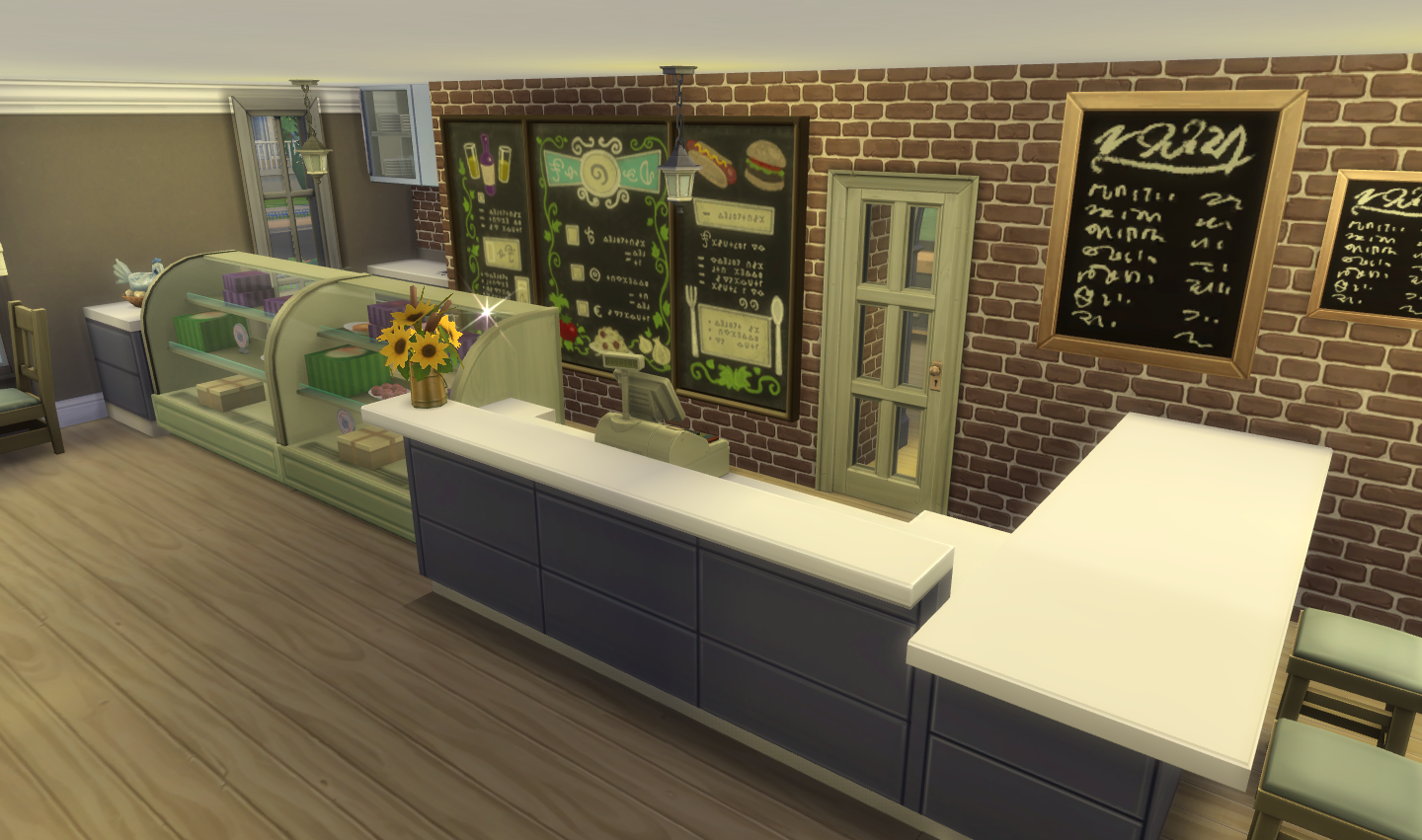 When the shop is closed I move the counter to the wall so my Sim can move freely around the shop. And go outside:
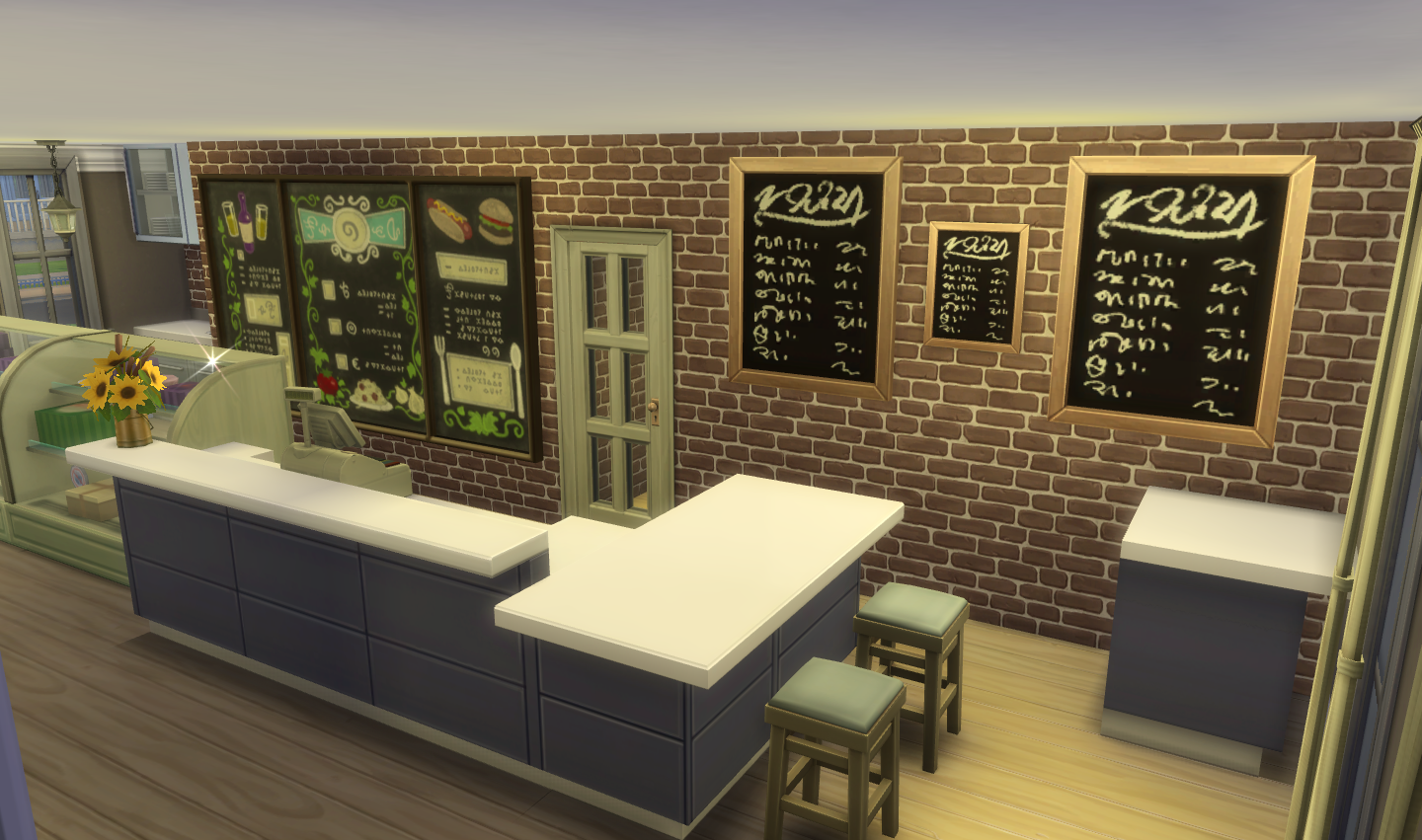
Of course there is a very simple solution to this – lockable doors. You hear that EA? Please bring back lockable doors. Pronto.
I’m going to carry on playing around with this because it is kind of fun being able to run a home business again. I just wish EA would let us do it properly. The Sims community have been crying out for the ability to run a business from home. It’s a shame that EA , in their seemingly never-ending quest to disappoint, still won’t give their customers what they want.
For an up to date list of reported bugs, head over to Crinrict’s bug thread at Answers HQ. It’s always worth checking to see if your problem is there.
So you know how everyone’s been screaming about home businesses in The Sims 3 and The Sims 4 since EA gave us these wonderful opportunities in The Sims 2 Open For Business? Well, with a little jiggery pokery and the Get To Work Expansion Pack, you can!
Jonalin, over on the official forums, has written a post explaining how to do it. Your Sim buys a retail lot then you build a living space as well as a retail space. And don’t leave. This does obviously mean that you effectively have a redundant lot, your residential lot, but who cares when you can live amongst your customers all day?
I’m just about to start up my game and give it a go 🙂
 Bluebellflora