
The Sims 4 Maker Packs installation location in macOS and why it may be a problem

The Marketplace has launched and naturally the first thing I want to know is where the Maker Packs are installed to on my Mac. I presumed it would be in The Sims 4 Packs folder where all our DLC is installed, outside of the base game, but apparently not.

If you’re nosy like me and want to know where your Moola purchases are stored, look in your hidden user Library folder. In Finder click on Go in the menu bar then Go to Folder and copy/paste this file path then hit Enter/Return and it will pop up in the Finder window:

~/Library/Application Support/TS4

Or navigate manually:

The files ending .bpf are the Maker Packs you’ve downloaded:
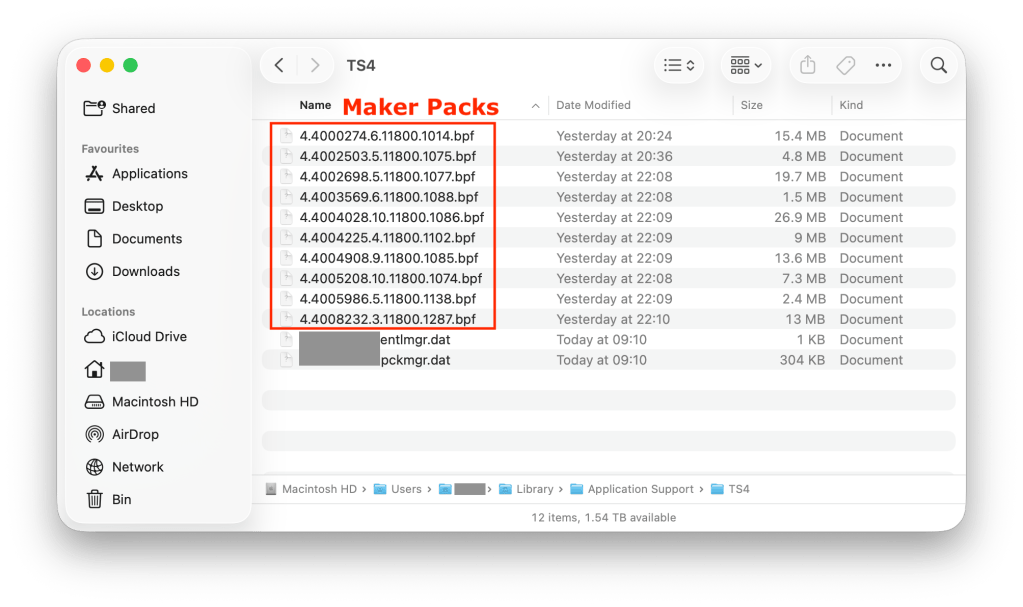
When you install Maker Packs they download here. If you want to uninstall the easiest way is to do it in-game via the Marketplace > My Collection:

Manage Storage:

Then click on the little check box of the Maker Pack you would like to uninstall and click Uninstall:
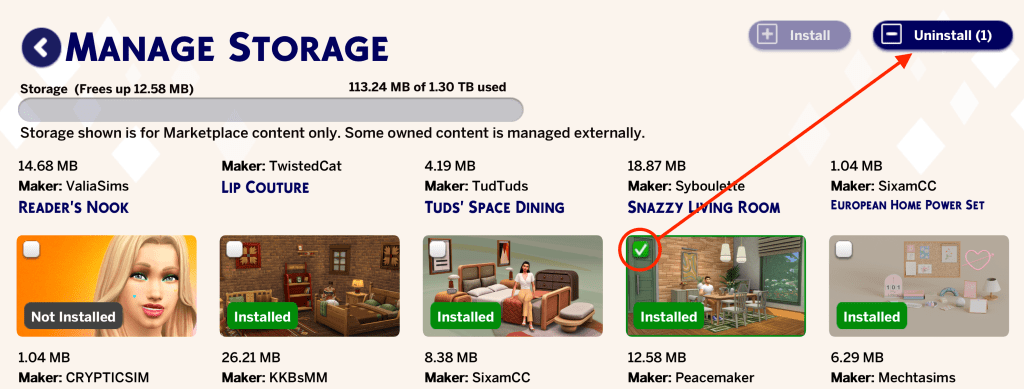
The relevant .bpf file in the Library > Application Support > TS4 folder will disappear. This is great if you are having storage issues on your internal drive and need to free up space but will of course mean that those items will be removed from your game, even if you have the game installed on an external drive, because the Maker Packs are separate from the base game and Sims 4 Packs installation location set in EA App > Settings > Download. Basically it seems the game installation has been split into two.

What does this mean if you have the game installed on an external drive?

Essentially nothing providing you have enough internal storage space on your Mac to hold all the Maker Packs you own. But if you have space issues on your Mac you’re going to have problems. The hidden Library > Application Support > TS4 folder is not a folder you can simply move to the external drive. Nor is it a location that iCloud accesses. It is only a local folder and each user account on your Mac has its own Library folder. I hope that Maxis rethink this location and add the Maker Packs to the Sims 4 Packs folder so we have the game installation all in one place. In the meantime I think it may be possible to get round this by storing the TS4 folder on the external drive, if you’re using one, and creating a symlink in the Application Support folder but I need to test this.

This also affects Windows players but the hidden folder location is different. We’ve started a Feedback thread on the forums here – https://forums.ea.com/discussions/the-sims-4-feedback-en/marketplace-download-data-stored-in-hidden-folder-location/13264516

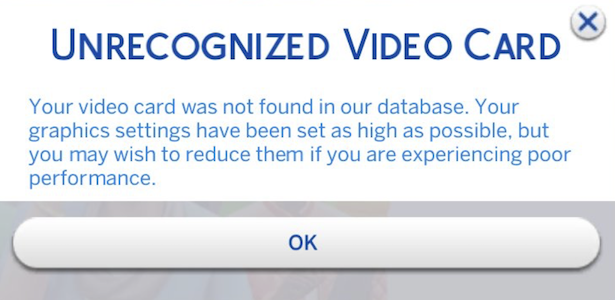
“Unrecognized Video Card” error on Mac

If you experience this error message at the main menu in The Sims 4 when launching the game, don’t panic! It’s nothing to worry about and won’t stop you playing the game.

It’s simply because EA haven’t updated the GraphicsCards.sgr file in the main game to incorporate your GPU. You can do one of two things to stop the message from appearing:

  • Download the updated GraphicsCards.sgr file I have uploaded here
  • Open your Downloads folder, right click on the downloaded file and select Copy
  • Open the ConfigOverride folder in Documents > Electronic Arts > The Sims 4. Right click in the folder and select Paste item. That’s it.

Or:

  • Right click on the Sims 4 base game, wherever you have it installed (Applications folder by default) and select Show package contents
  • Navigate to Contents > Resources
  • Right click on the GraphicsCards.sgr file and select Copy
  • Open the ConfigOverride folder in Documents > Electronic Arts > The Sims 4. Right click in the folder and select Paste item.
  • Open the GraphicsCards.sgr file you have pasted into the ConfigOverride folder. If prompted to choose an Application in Finder, choose TextEdit.
  • Scroll all the way down to the bottom of the file to the Apple bit and paste the following lines:
vendor "Apple" 0x106B
    card 0x0000 "Apple M4" $cardLevelUber $resolutionHigh $cardLevelUber
    card 0x0000 "Apple M4 Max" $cardLevelUber $resolutionHigh $cardLevelUber
    card 0x0000 "Apple M4 Pro" $cardLevelUber $resolutionHigh $cardLevelUber
    card 0x0000 "Apple M3" $cardLevelUber $resolutionHigh $cardLevelUber
    card 0x0000 "Apple M3 Max" $cardLevelUber $resolutionHigh $cardLevelUber
    card 0x0000 "Apple M3 Pro" $cardLevelUber $resolutionHigh $cardLevelUber
    card 0x0000 "Apple M2" $cardLevelUber $resolutionHigh $cardLevelUber
    card 0x0000 "Apple M2 Max" $cardLevelUber $resolutionHigh $cardLevelUber
    card 0x0000 "Apple M2 Pro" $cardLevelUber $resolutionHigh $cardLevelUber
    card 0x0000 "Apple M1" $cardLevelUber $resolutionHigh $cardLevelUber
    card 0x0000 "Apple M1 Max" $cardLevelUber $resolutionHigh $cardLevelUber
    card 0x0000 "Apple M1 Pro" $cardLevelUber $resolutionHigh $cardLevelUber
    card 0x0000 "Apple A12Z" $cardLevelUber $resolutionHigh
end
  • Close the GraphicsCards.sgr file, saving if prompted (you shouldn’t be)

It’s important to copy and paste the GraphicsCards.sgr file. Do not drag it to the ConfigOverride folder as it will only create an alias of the original file.

The lines above add all Apple Silicon models to the .sgr file. I think all previous Intel model Macs are covered but if you’re on an Intel Mac and getting the error, jump into my Discord support server for help.

This is not a Mod in the typical sense, it does not need to be in your Mods folder, it is a simple addition to a simple text file. For more info on the ConfigOverride folder see this article.

The Sims 4 For Rent – Renovated townhouses available soon!

3 Georgian Townhouses – 5 floors, small garden, balconies, possible roof terraces, very exclusive. Available early December 2023.