
Origin Installs and Saves location fixed for external drives

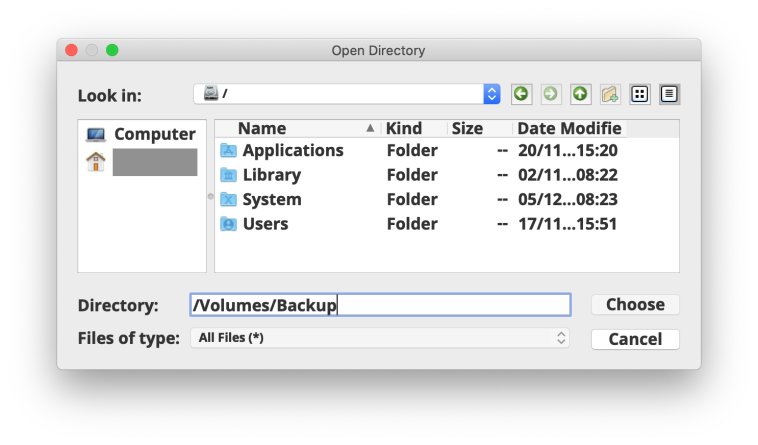
When did this happen? It must have been over the last few weeks as it hasn’t been that long since I played around with changing game library location to an external drive for some random testing purpose. For the last few years changing the game library location in Origin to an external drive has been a painful experience thanks to Volumes not properly showing in the chooser window:
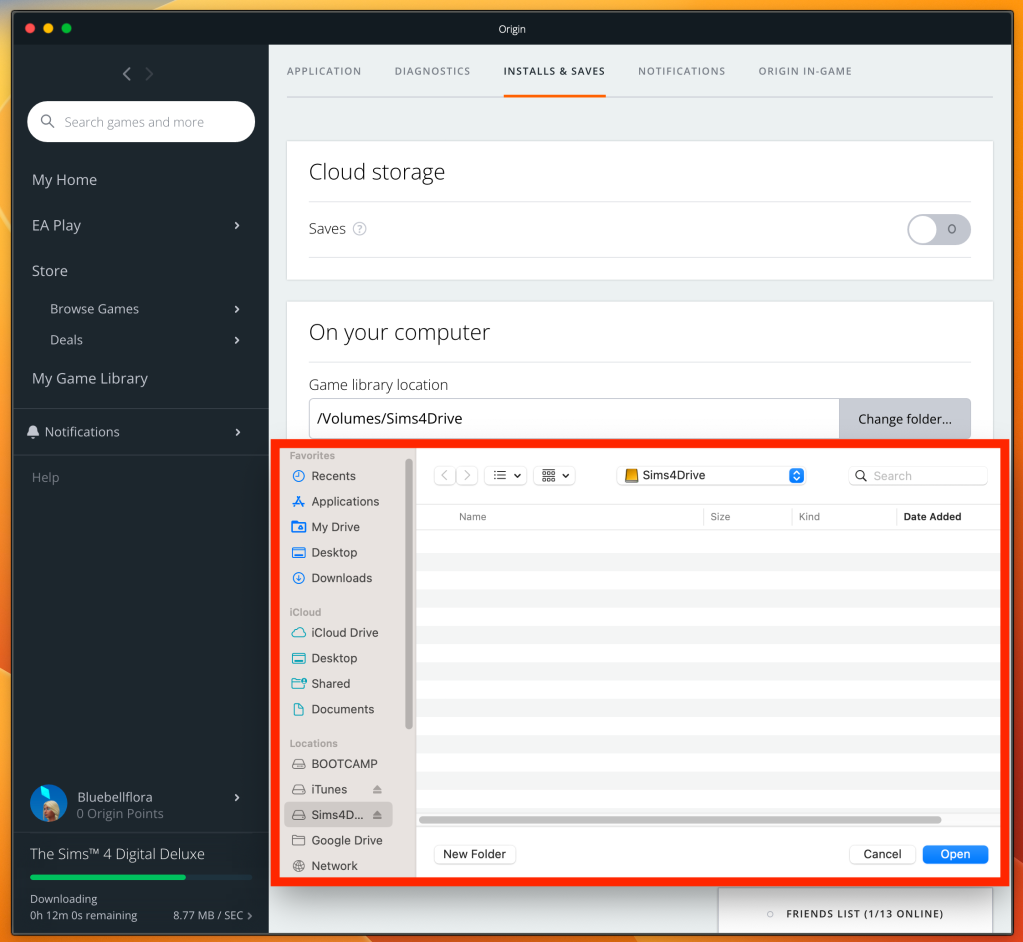
Now it looks like a proper macOS window and no need to jump through hoops to get the external drive to show up:
(If you’re not sure what I’m referring to, have a look at this guide from November 2020)

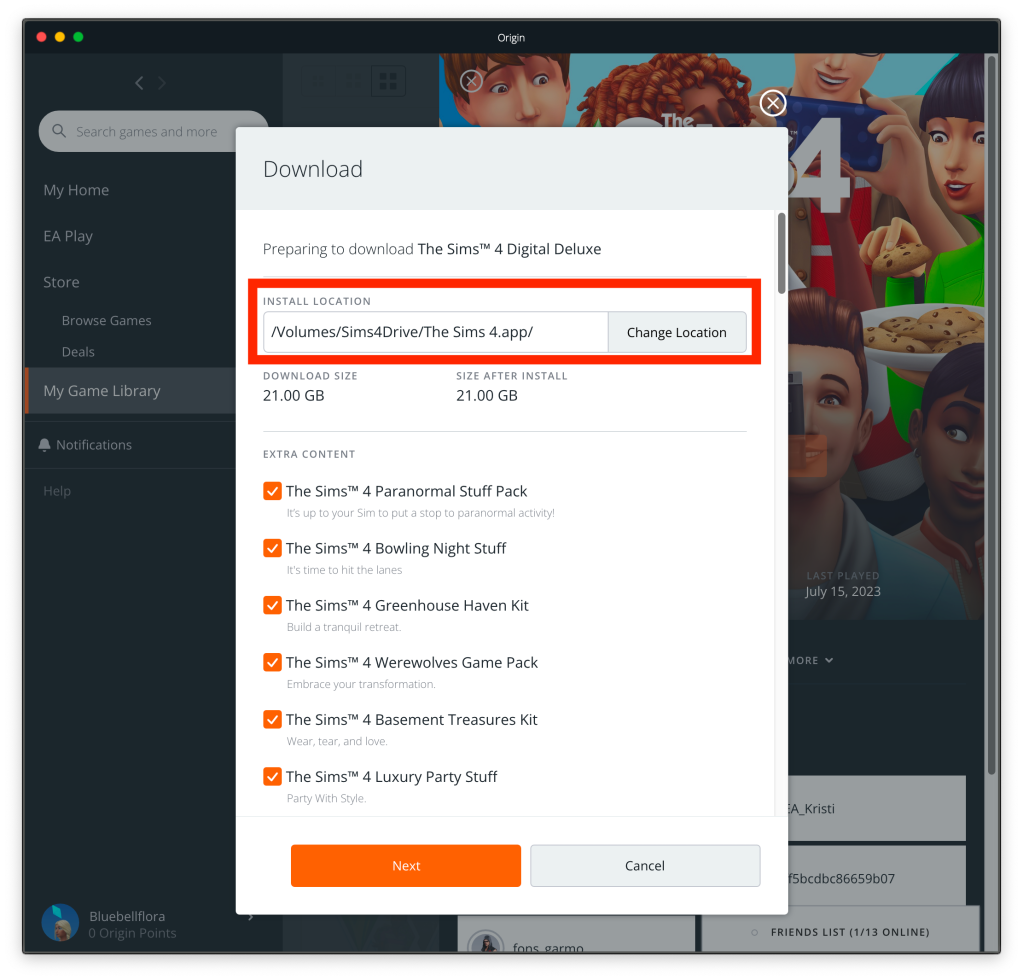
I don’t remember seeing the option to change Install location once clicking on Download and choosing which Packs to install, is that new or maybe I’m just too weary when it comes to Origin:
This is a great fix and a long time coming 🙂

Origin not downloading packs

Issue:
Cannot download Expansion, Stuff and Game Packs for Sims 4 (November 2020). When I click the orange Download button nothing happens.

Cause:
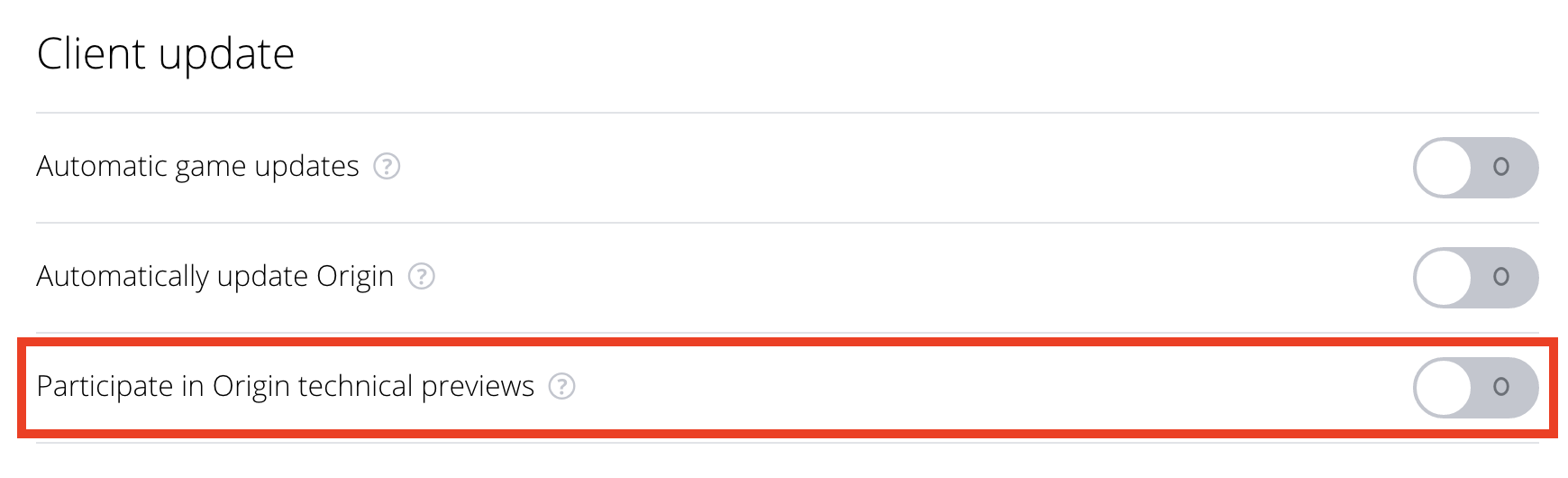
You’re running the beta/technical preview of Origin. You may not even realise this if you have just downloaded Origin but if you look in the top right corner of the Origin window you will see Technical Preview.

Fix:
Go into Application settings in Origin and disable the technical preview then restart Origin.

External Drive not showing in Origin

Edit July 2023 – this issue is now fixed. See this post for the update.

If you’re trying to install your game to an external drive you may have issues if you’re running macOS 10.15 Catalina or later. Here are quick steps on how to successfully install your game to an external drive:

1.  In System Preferences > Security & Privacy > Privacy click on Full Disk Access and add Origin if necessary.

2. Whilst in the Privacy tab make sure Origin is showing in Files and Folders

3. Open Origin and go to Preferences > Installs & Saves > Game Library Location and click on Change Folder

4. On the left menu click on Computer then double click on the ‘/‘ that appears next to a picture of your hard drive. You should see four folders – Applications, Library, System, Users

5. In the field at the bottom, where it says Directory, type in /Volumes/[the name of your external] then hit Enter/Return or click Choose.For example, my external is called Backup so the file path is /Volumes/Backup

6. The window will disappear and reappear again but you may not see your external. That’s ok, quit Origin then reopen it. You should get a Gatekeeper message popping up asking for permission to access files on a removable volume. Just click Ok

7. Now repeat steps 3 to 5 and you should see the contents of your external in the window