Sims 4 crashes or freezes when trying to access the Gallery or Library – workaround


This article is no longer relevant as the specific file is not in the game files


This issue has been prevalent since the August 2019 patch. We have a thread running on it over at Answers HQ here. When the user tries to access the gallery and/or their Library the game will freeze but more often than not, crash.

SimsQARobo has helpfully suggested accessing the Gallery through a web browser but there does seem to be another fix which is working, it involves trashing a game file, EAWebKit.so, which rebuilds itself after a game repair.

Workaround:

  1. Right click on the Sims 4 in your Applications folder and select Show Package Contents
  2. Navigate to Contents > Frameworks
  3. Drag the EAWebKit.so file to the Trash
  4. Open Origin, right click on the game in your Games Library and select Repair Game

The file will be recreated after the repair and you should now be able to access the Gallery and your Library again.

Sims 4 now works on macOS Catalina – Patch 1.56.52

Update 23/10/19 – EA have today released a patch to fix these Catalina issues – 1.56.55.1220. Make sure your game is up to date.


It’s patch day! And the BEST update is finally a working game in macOS Catalina – rejoice! This isn’t really much of a surprise given the announcement that 10.7 Lion users must not update their game to this patch if they want to carry on playing. It seems that making the game Catalina compatible  breaks it for Lion users, something to do with the ActivationUI file and Lion’s need for it to be in the game files. It’s a shame but Lion is 8 years old now so time to upgrade if you can. If your Mac is stuck at 10.7 Lion then unfortunately it does not meet the minimum hardware requirements for the game as it will be around 10 years old at least.

There are a couple of issues that have cropped up:

Error message – Unable to start: The Sims 4 is already running

  1. Move your Sims 4 folder to the desktop (this resets it back to default settings but all your data is safe in the folder you moved)
  2. Launch the game to the main menu then quit
  3. Open the Sims 4 folder you moved to the desktop then the saves folder. Select all your saves and drag them into the newly created saves folder in Documents > Electronic Arts > The Sims 4
  4. Do the same for the Tray, Mods and Screenshots folders

Game very laggy/game freezing and cursor beach balling  (fixed in Origin patch 11/10/19)

  1. Click on the game in your Games Library in Origin
  2. Click on the little cog under the Play button for Settings
  3. Click on Game Properties and uncheck the box for Enable Origin In Game for The Sims 4

If you are running Lion and have inadvertently updated your game you will need to update it via the Mac App Store. 10.14 Mojave is the current OS level but any version available to you from 10.8 Mountain Lion onwards will work. 10.15 Catalina will be available to all this month as a download from the Mac App Store.

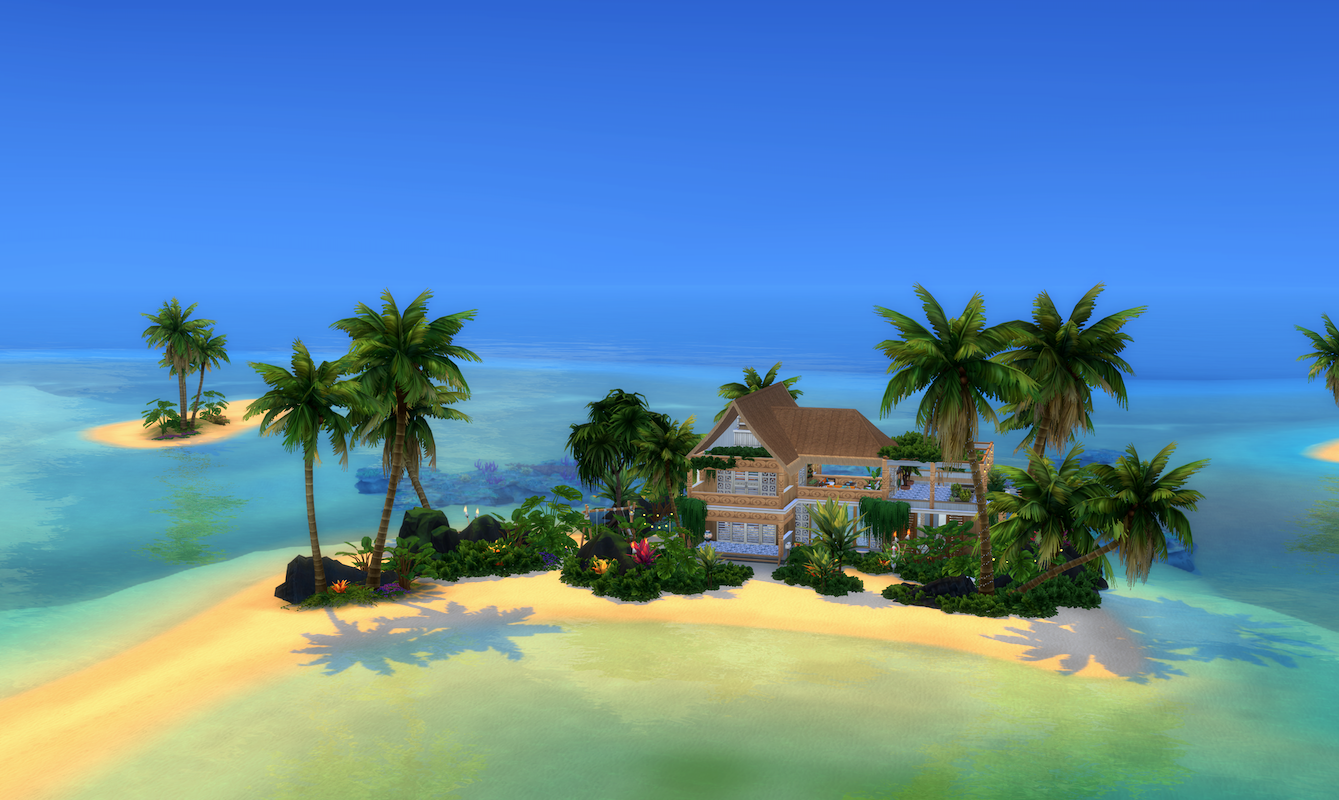
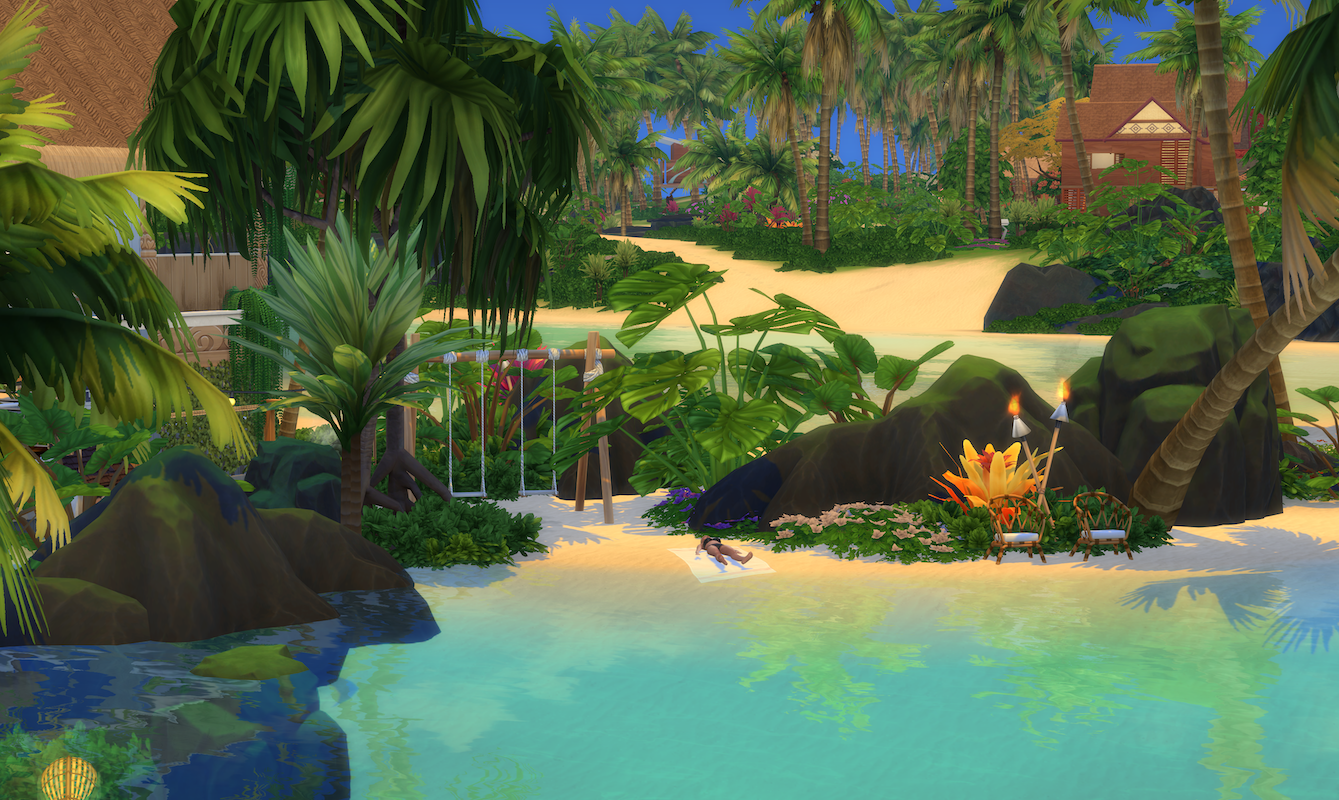
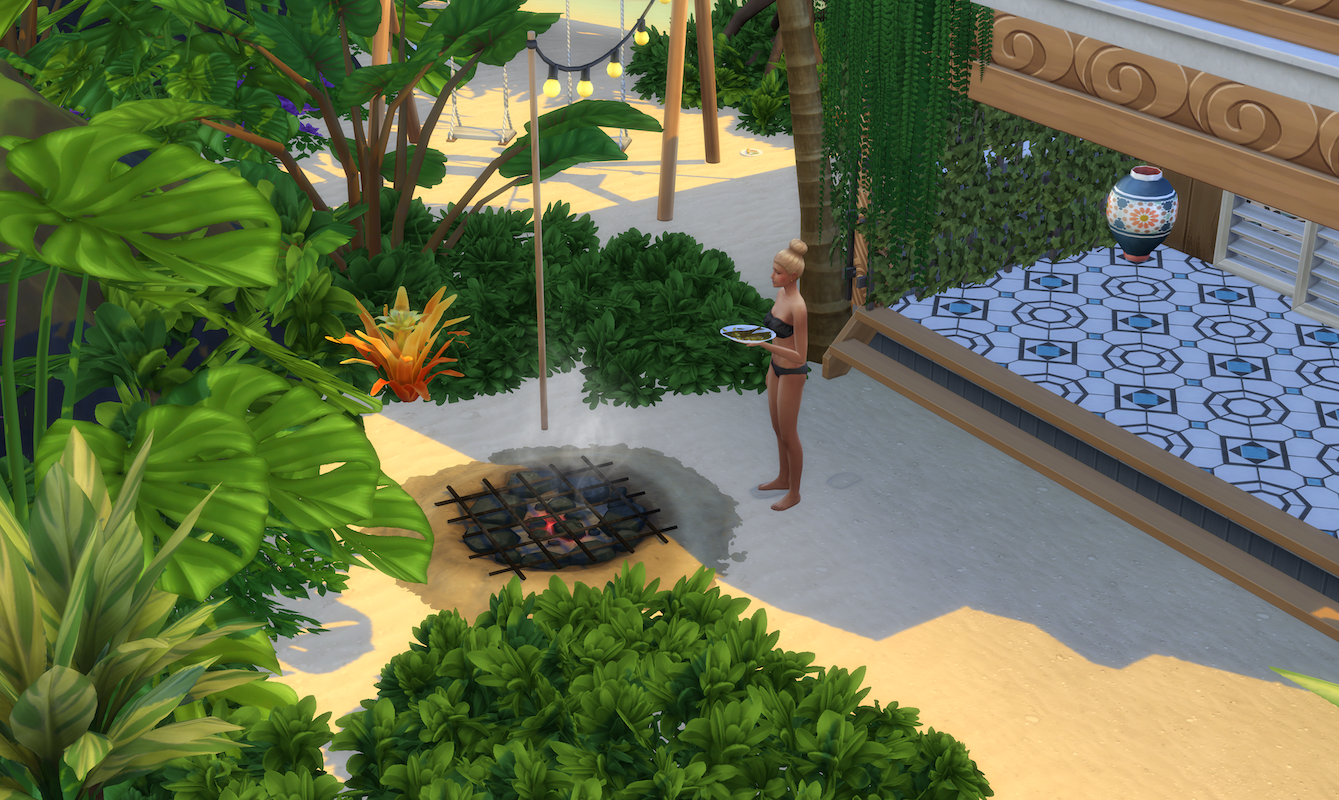
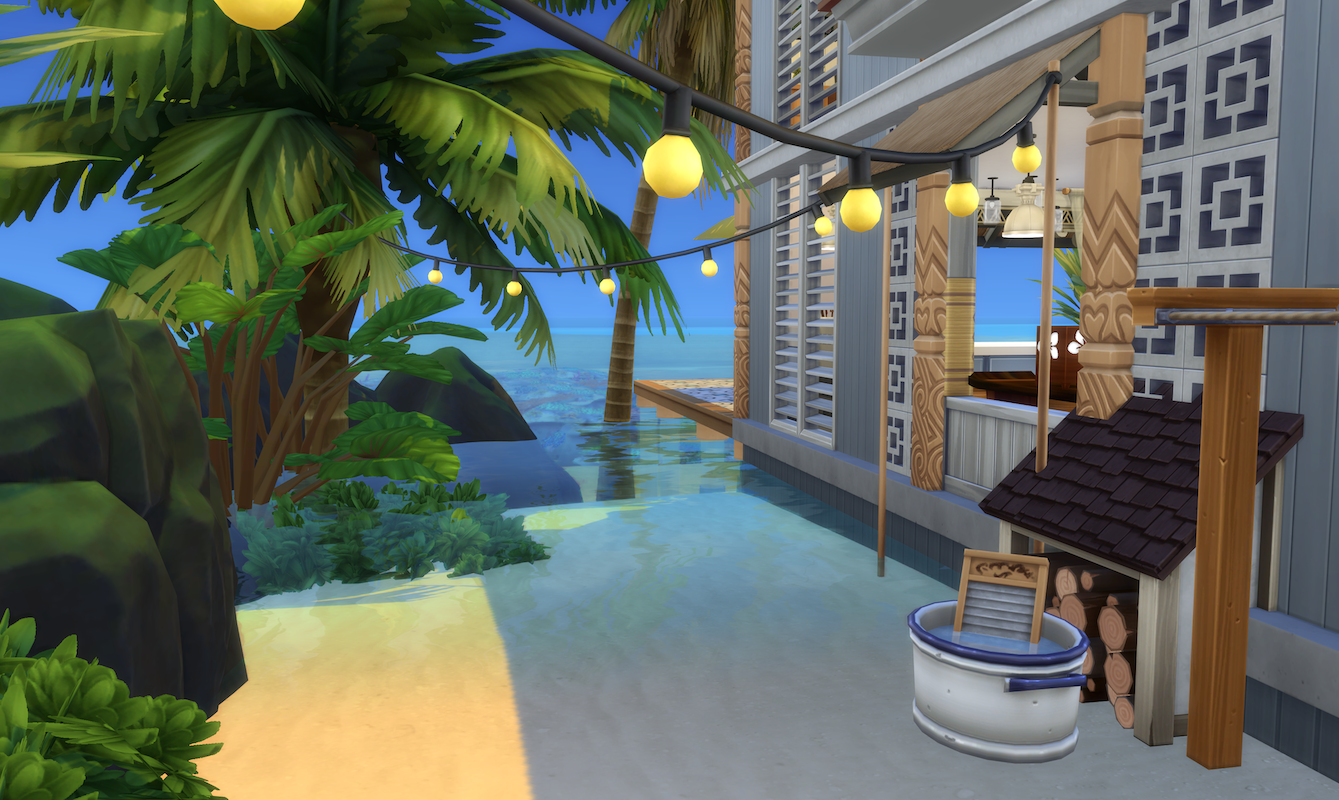
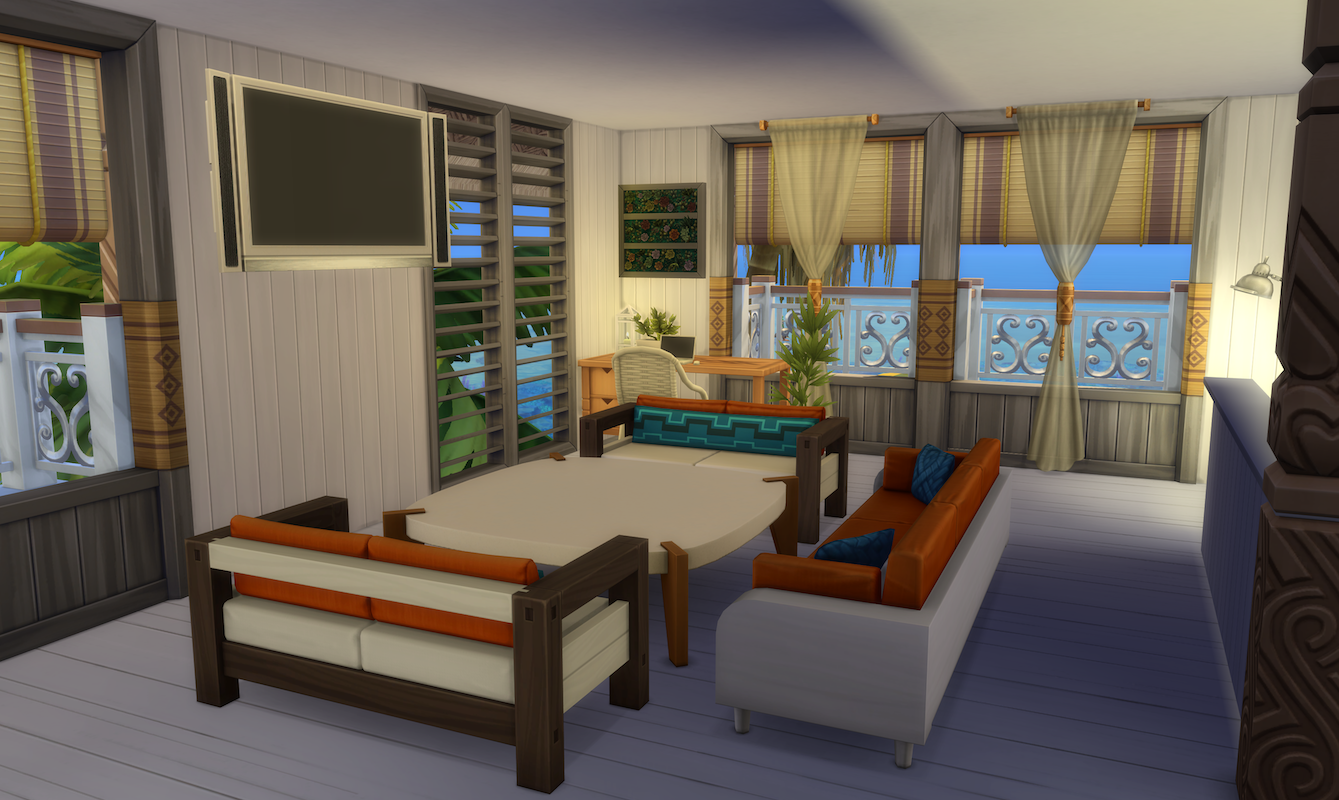
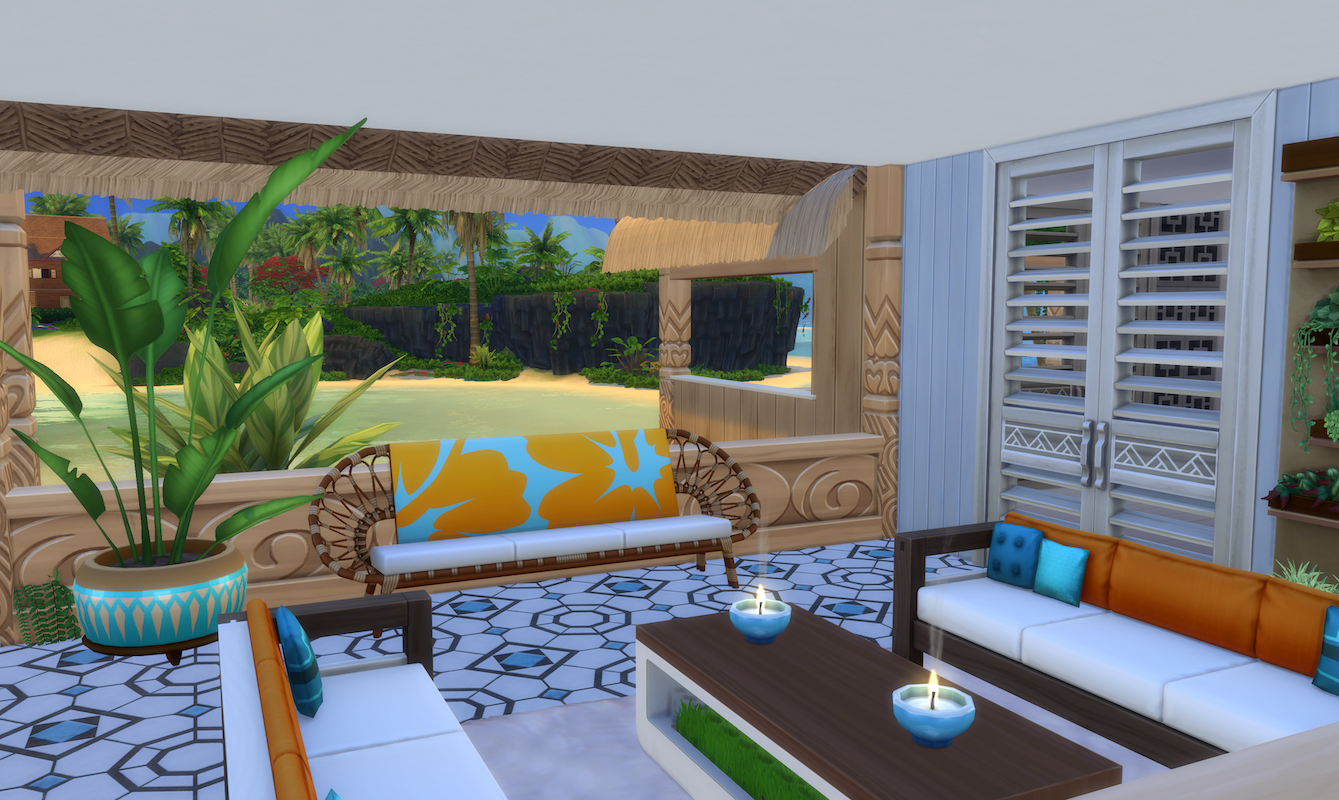
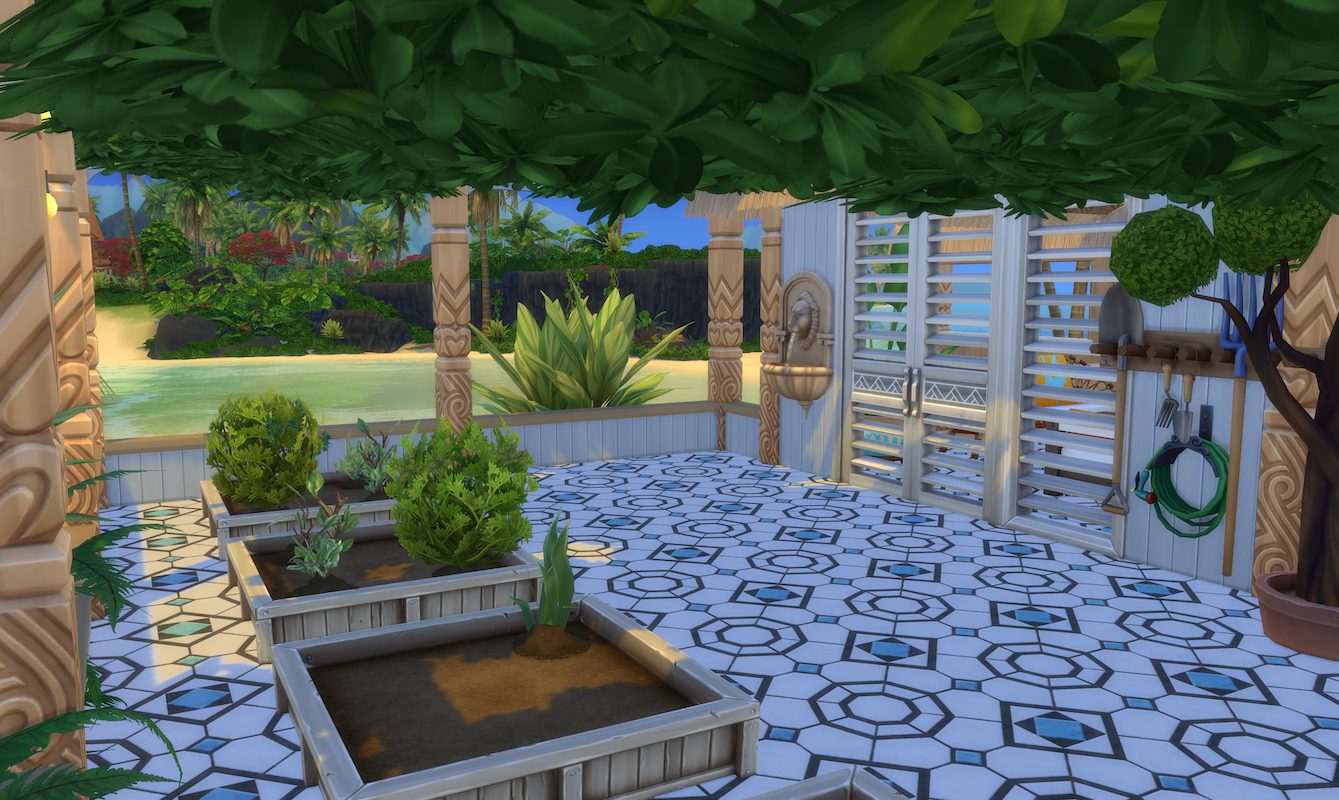
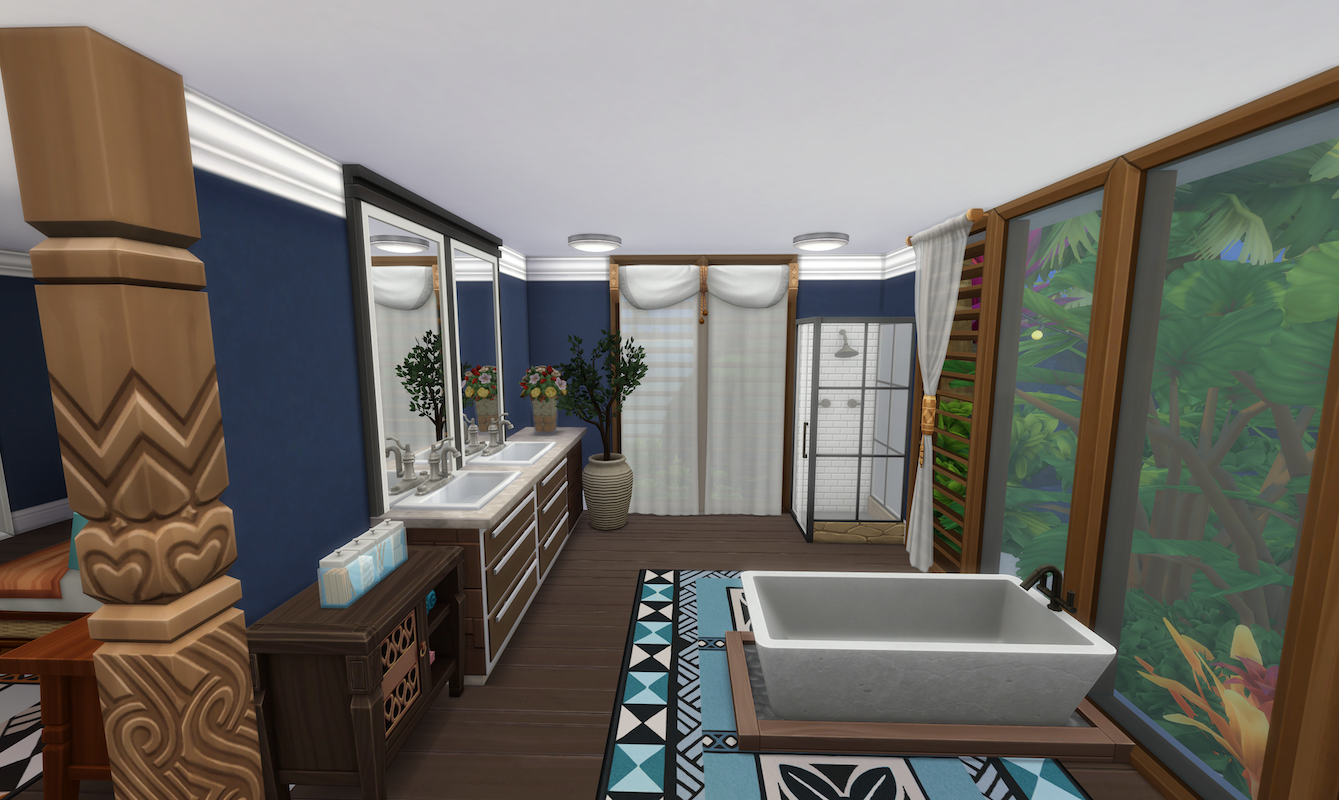
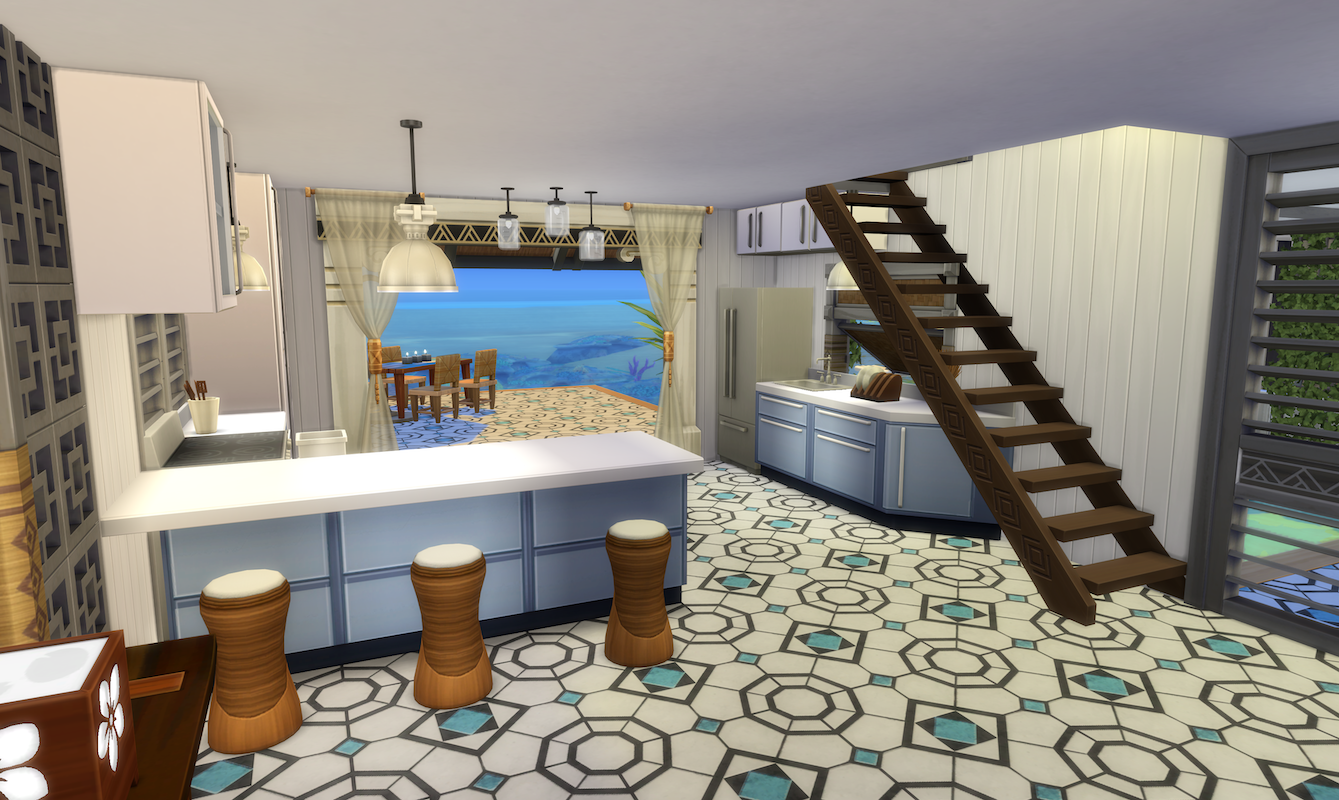
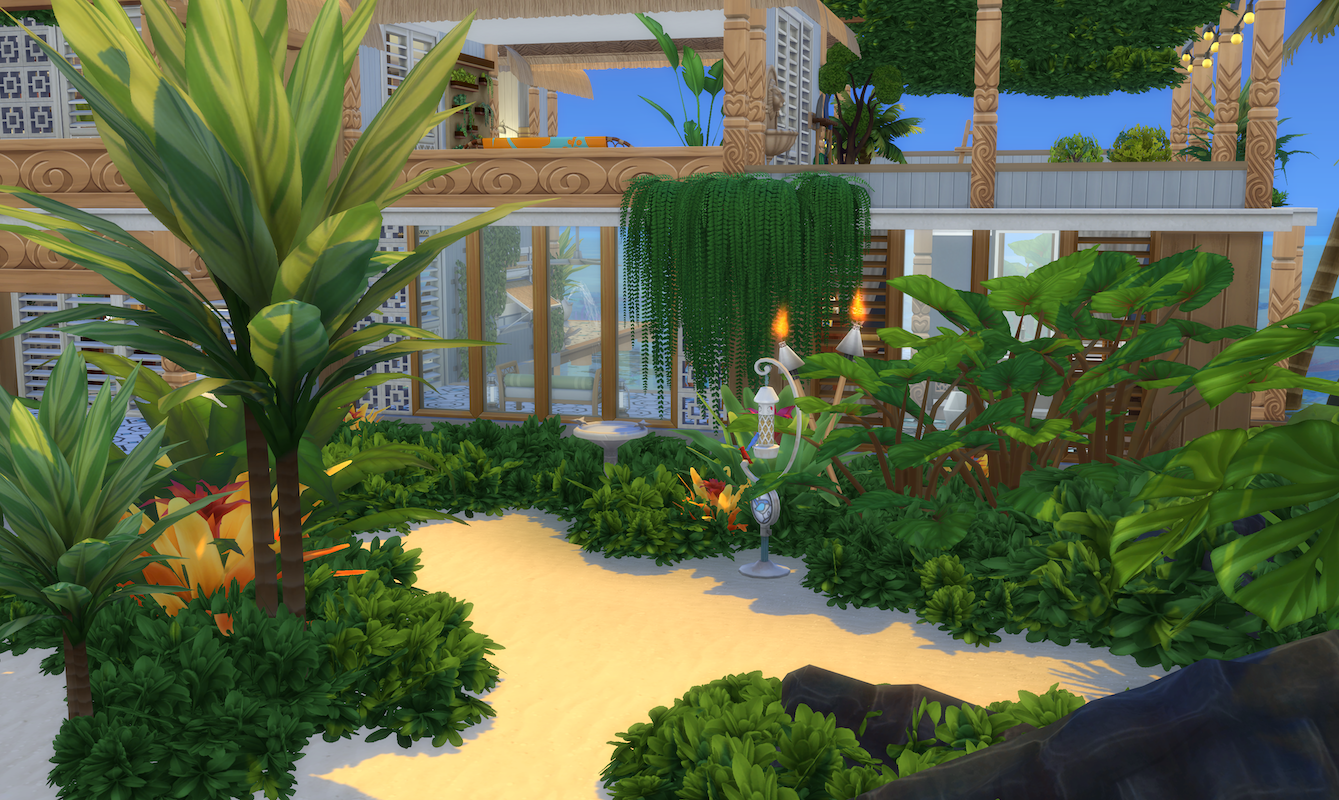
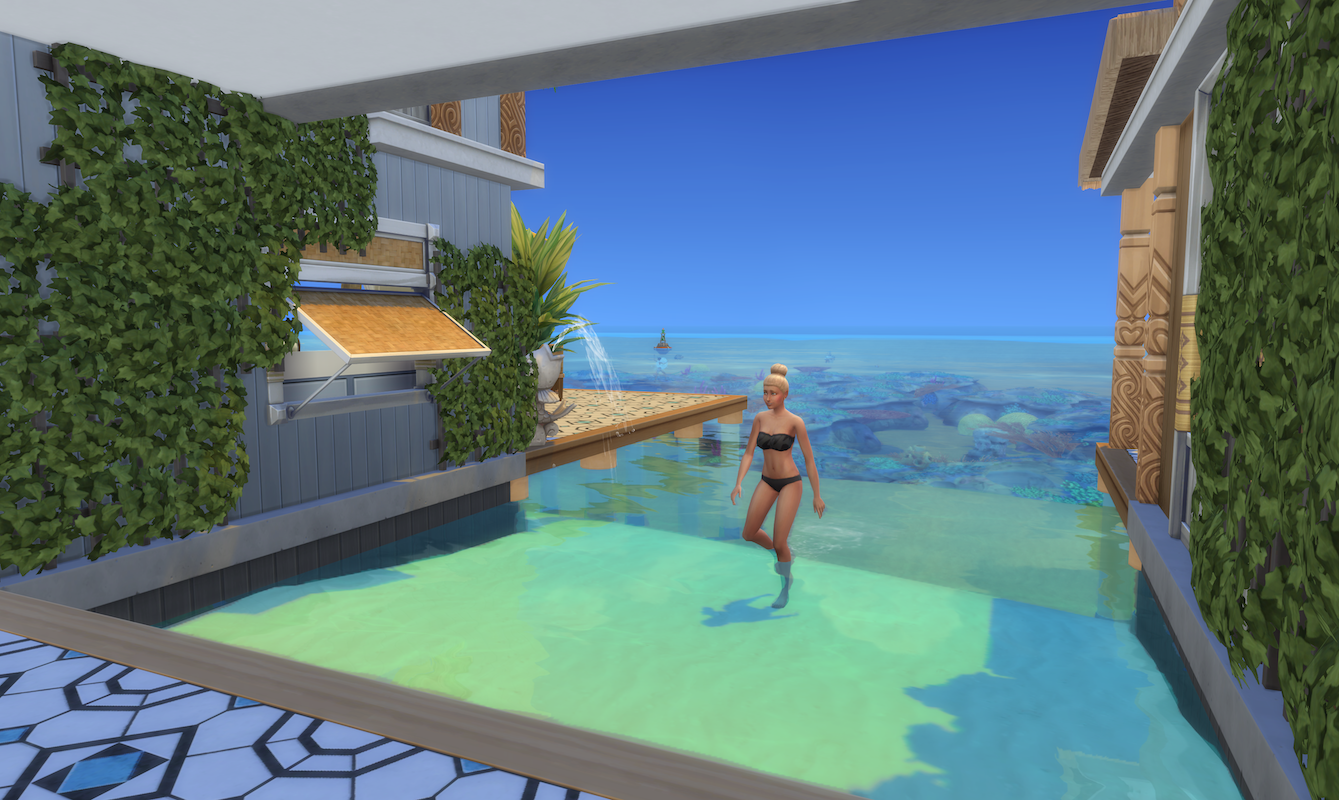
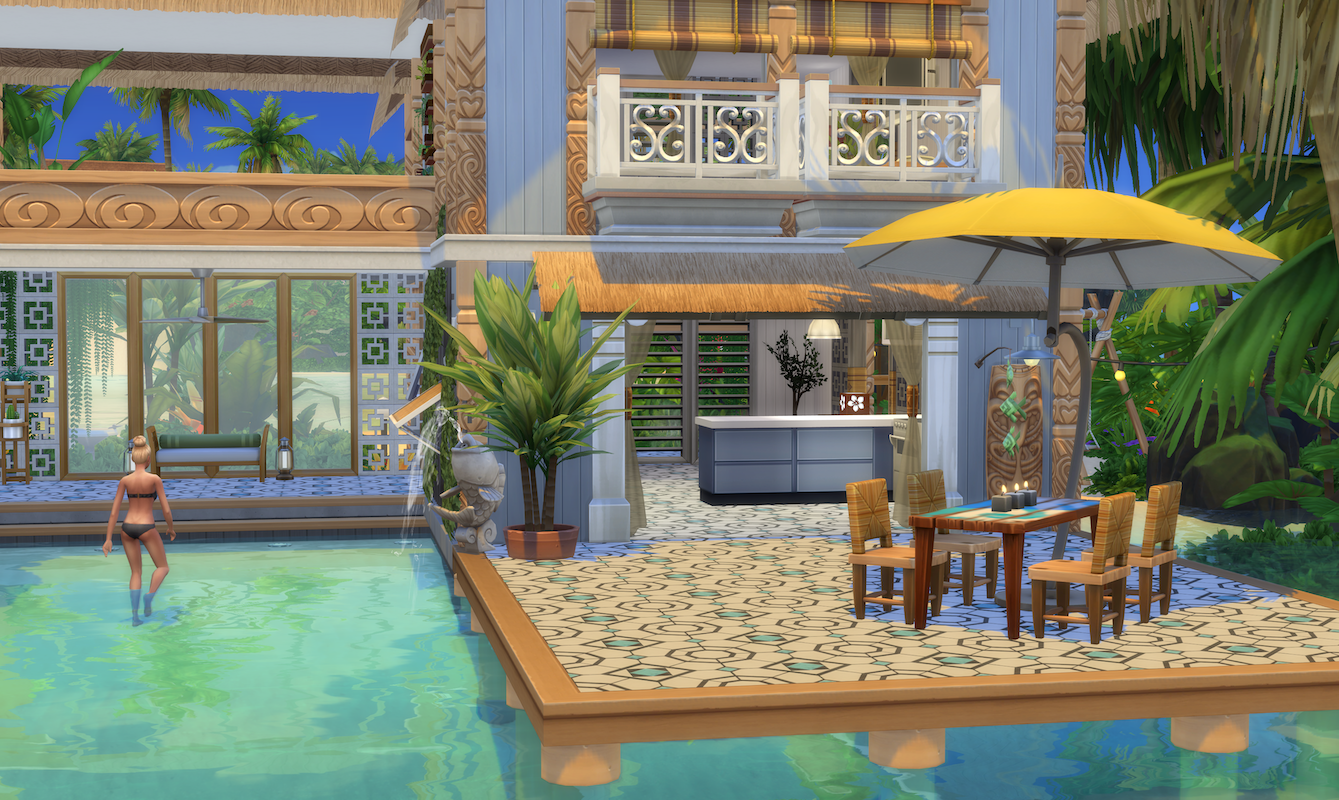
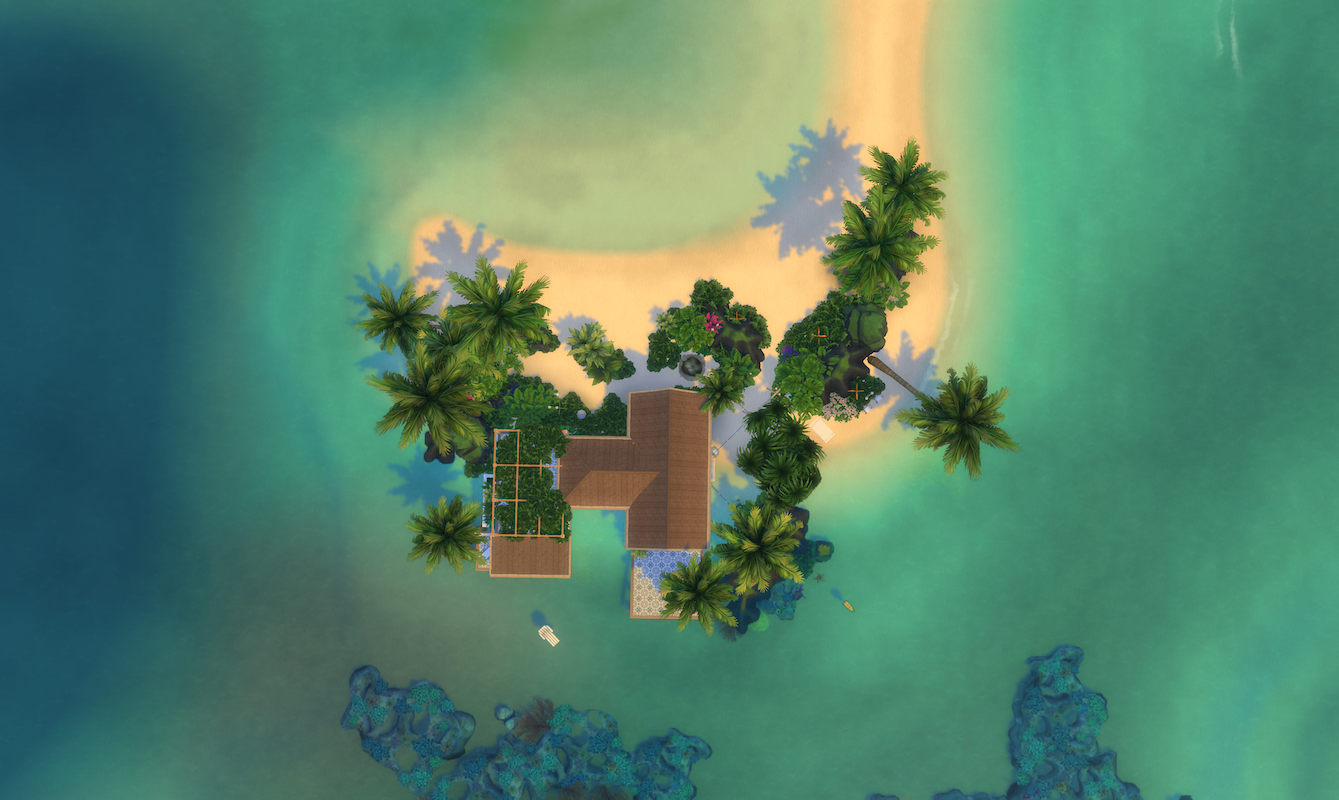
Eternal Island, a new Sims 4 Residential Lot

I really miss the ability to be able to edit the town or create worlds. When I saw the Reef Finery lot in Sulani I thought it would be perfect to try and incorporate the town furniture into the lot using MOO by overhanging objects across the lot boundary as much as possible.

I have loved making this lot, it’s so tranquil and instantly calming in game!

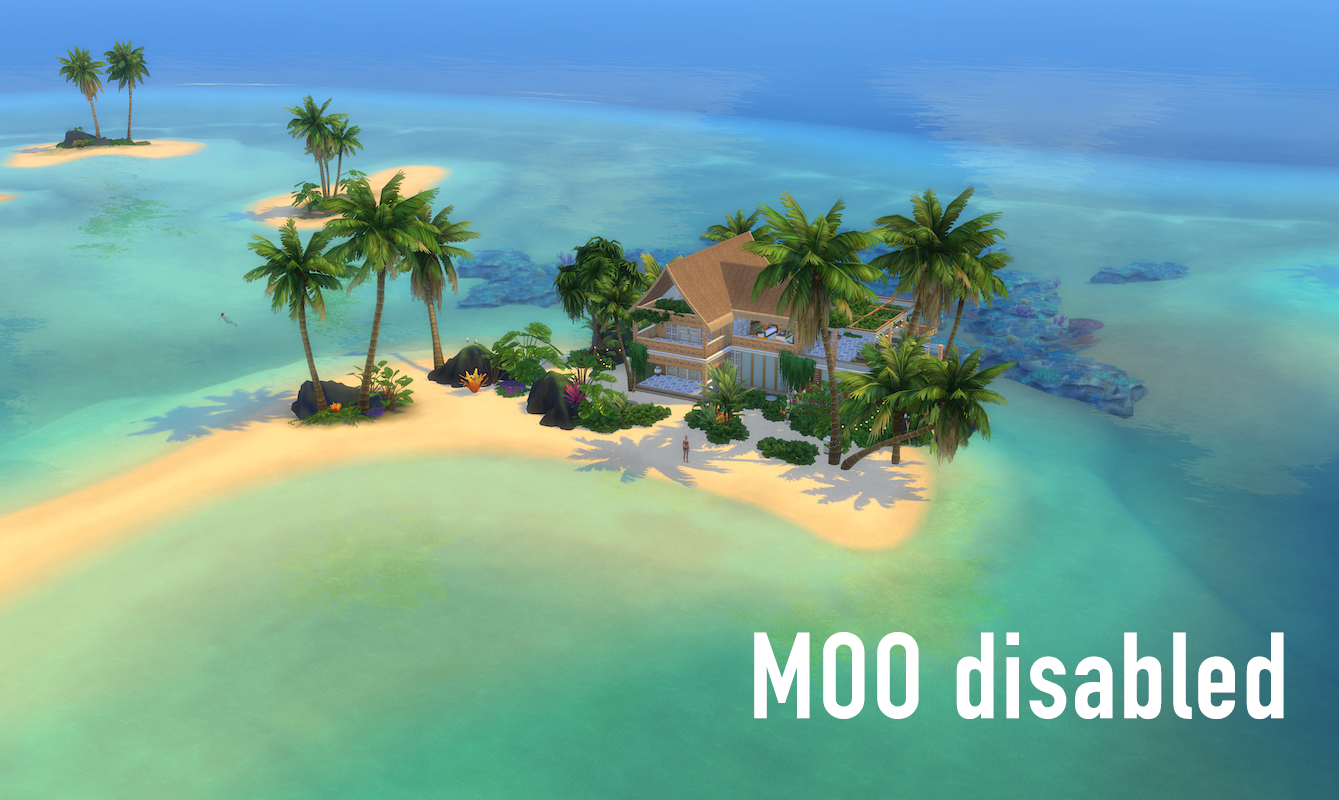
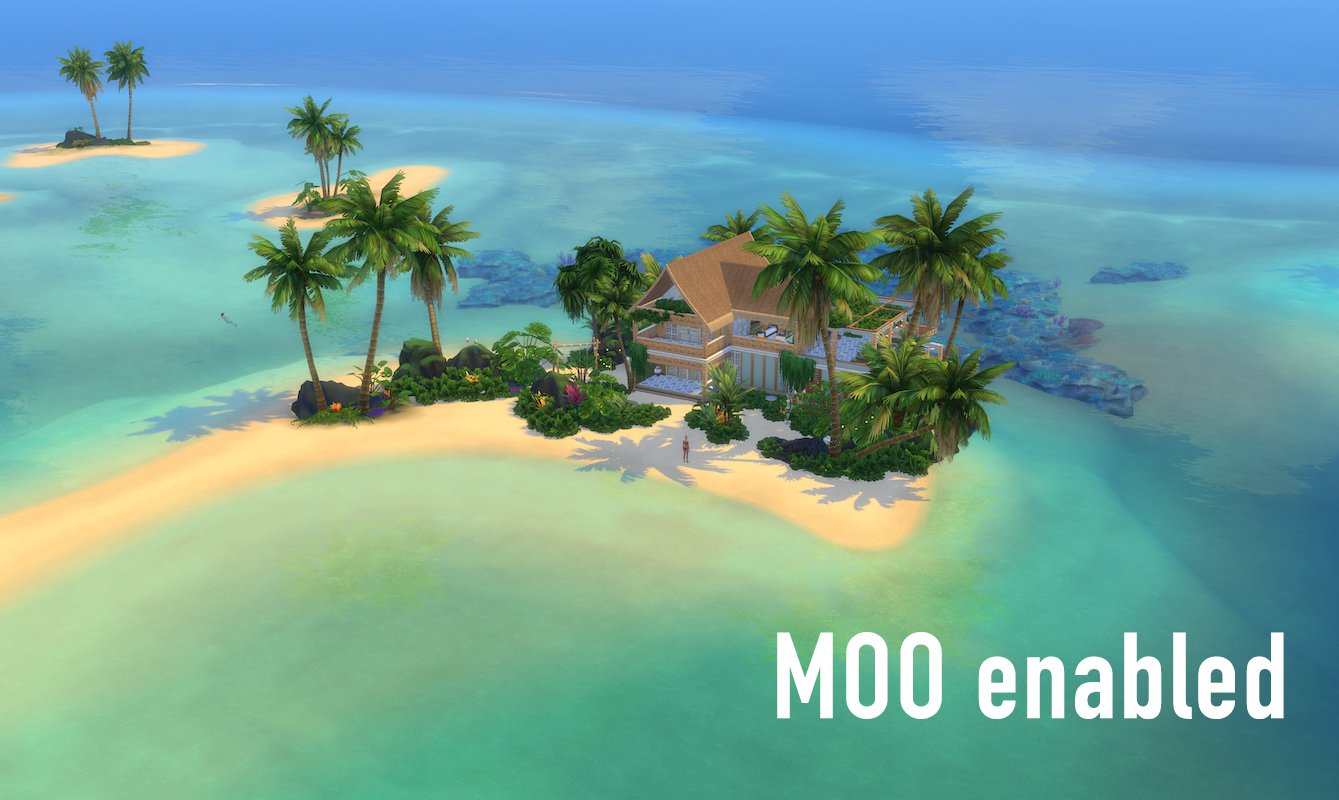
I made the lot look like it takes over the island with ample use of MOO and placing objects right on the edge of the lot so make sure MOO is enabled before placing. You can see the difference here between MOO on and MOO off:

I used content from the following packs:

  • EPs – Island Living, Get Famous, Seasons, Cats & Dogs, City Living, Get Together, Get To Work
  • GPs – Strangerville, Jungle Adventure, Parenthood, Vampires, Spa Day
  • SPs – Laundry Day, Toddler Stuff, Bowling Night, Vintage Glamour, Backyard, Romantic Garden, Movie Hangout, Cool Kitchen, Perfect Patio