Edit July 2023 – this issue is now fixed. See this post for the update.
If you’re trying to install your game to an external drive you may have issues if you’re running macOS 10.15 Catalina or later. Here are quick steps on how to successfully install your game to an external drive:
1. In System Preferences > Security & Privacy > Privacy click on Full Disk Access and add Origin if necessary.
2. Whilst in the Privacy tab make sure Origin is showing in Files and Folders
3. Open Origin and go to Preferences > Installs & Saves > Game Library Location and click on Change Folder
4. On the left menu click on Computer then double click on the ‘/‘ that appears next to a picture of your hard drive. You should see four folders – Applications, Library, System, Users
5. In the field at the bottom, where it says Directory, type in /Volumes/[the name of your external] then hit Enter/Return or click Choose.For example, my external is called Backup so the file path is /Volumes/Backup 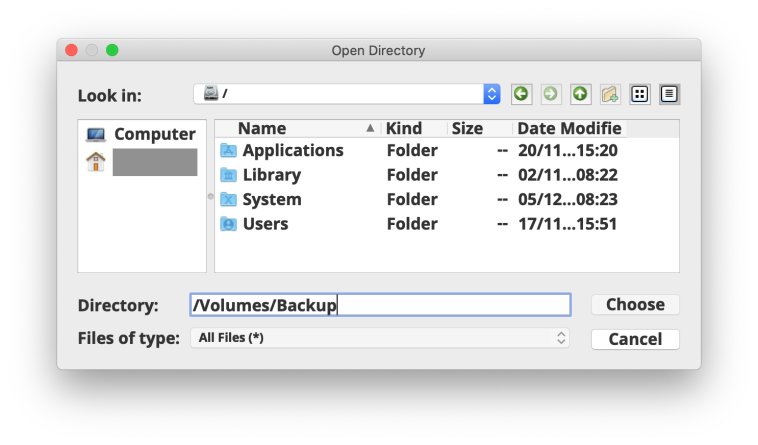
6. The window will disappear and reappear again but you may not see your external. That’s ok, quit Origin then reopen it. You should get a Gatekeeper message popping up asking for permission to access files on a removable volume. Just click Ok
7. Now repeat steps 3 to 5 and you should see the contents of your external in the window



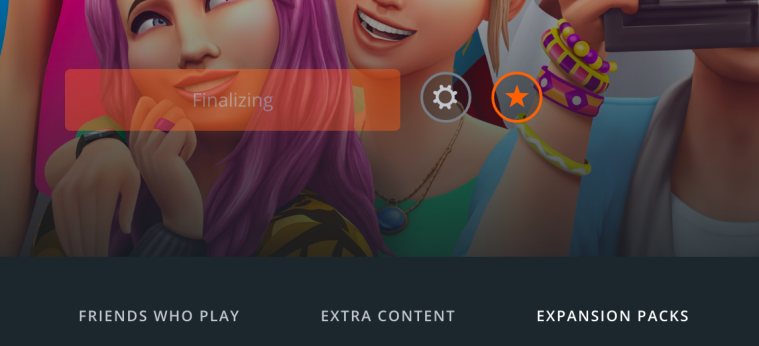
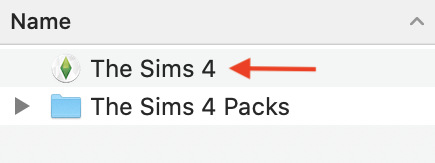 This will automatically launch Origin and then the game. Remember you have two Applications folders, the system one and your user account one. By default Origin currently installs the game to your user Applications folder unless you have changed the setting. The locations can be found here:
 Bluebellflora