

Sims 4 showing as Finalizing in Origin

The Sims 4 received a major update for Mac users in April. Not in terms of game content but changes to the way it is installed to comply with Apple’s notarisation terms for Catalina, enhancing the security of your system. As a by-product of the notarisation you may now see a greyed out Finalizing option under the game in your Origin games library when you install content, install a patch, or repair the game:

This is normal and is the OS checking that the download in Origin is all safe and ok to run. It can show as finalizing for any length of time, depending on your Mac hardware. The more powerful your CPU, the quicker it will complete the checks. You may notice the fans ramping up in your Mac during this process, that is normal as it is using a significant amount of CPU so is in need of sufficient cooling during the process. Occasionally the button doesn’t change and seems stuck on finalizing. Don’t panic if this is the case! Try the following to fix it:

  • Quit Origin and reload it. It may now say Play.
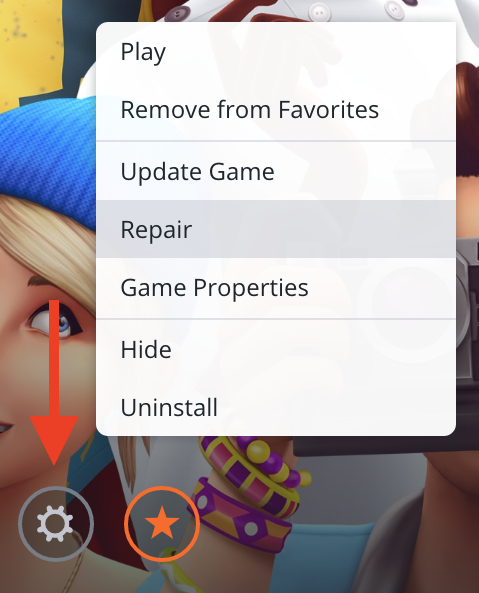
  • Click on the white cog that says Settings when you hover your cursor over it and choose repair:
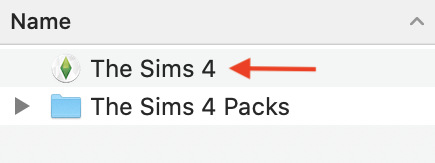
  • Load your game by double clicking on the Sims 4 app in your Applications folder, as you would normally load any other app. This will automatically launch Origin and then the game. Remember you have two Applications folders, the system one and your user account one. By default Origin currently installs the game to your user Applications folder unless you have changed the setting. The locations can be found here:
    • Macintosh HD > Applications (your internal drive may have a different name but by default it is Macintosh HD)
    • Macintosh HD > Users > [Your User Account] > Applications

How to successfully buy the Sims 4 in Origin

If you’re looking to buy the Sims 4 you need to be aware that buying it through Origin isn’t currently as straightforward as it should be. EA are really pushing Origin Access subscriptions at every step of the purchasing process, trouble is that Origin Access (OA) is not available to Mac users so a lot of new Sims players are unwittingly buying the OA subscription which is completely useless to them. The trial version of the game is also not available to Mac users so don’t even bother trying to download it.

  1. Go to Origin.com or download and install the Origin client. Log in with your EA/Origin account if you already have one or create a new one.
  2. Find the Sims 4 base game and click Get The Game:
  3. Ignore the massive adverts trying to get you to buy Origin Access and click on the Buy Now button:
  4. You will then be taken to the next option asking you which version of the base game you would like to buy. Click the one you want and follow the rest of the instructions. Ignore the Origin Access advert at the bottom of the page.
  5. For further help installing the game see full instructions here.

If you have unwittingly purchased an Origin Access subscription  and want to cancel it:

  1. Log into your Origin account
  2. Hover over your name in the bottom left corner and select EA Account & Billing
  3. In the web browser window that opens to your EA account page select Origin Access from the menu on the left side and follow the instructions to cancel the subscription

If you’re running out of space to play the Sims, here are your options for storing your data externally

This gets asked a lot on Answers HQ, how do you store your Sims 4 folder on an external drive and your game recognise it as the default location? You may want to do this for various reasons:

  • You have a small internal drive on your Mac, typically 128GB or 256GB.
  • You’re running out of disk space on your internal storage and need to move some user data off your Mac.
  • You want to play on more than one Mac so therefore having your Sims 4 folder on an external thumb drive is more appealing to you.

Currently, and ever since it was launched, the game has only ever looked in the user’s Documents > Electronic Arts > The Sims 4 folder for files to load for your game. The Sims 4 folder contains your saves, tray files (your in-game library), all CC/Mods if you use them, screenshots taken in-game using C, recorded videos, your in-game graphics options, plus a few other files and folders that make your game unique to you. If the game cannot locate a Sims 4 folder in that location it will create a new one, resulting in a brand new, clean game when you launch it.


iCloud Drive users:
If you have been using iCloud Drive to store your Documents folder in the cloud but suddenly the game starts creating new games, this is because your internal storage is very full. Up until that point your Mac has been keeping the files locally as well as in the cloud which is why your game is happily loading all your saved games. There is no way round this unless you free up more space on your Mac or store the data externally. Here is a great article explaining how it works in more depth.


To store your Sims 4 folder, or the entire Electronic Arts folder if you wish, externally you need to create a symbolic link (symlink) on your Mac to store the folders and files on an external device.

There are pros and cons to each option –

  • Symlink method:
    • Pro – storing your Sims 4 data on a physical external drive you can take anywhere with you
    • Pro – data automatically stored on the external, no need to manually move files around
    • Pro – Faster read/write speeds if you use a USB-C/Thunderbolt drive and have slow internet
    • Pro – you can install the actual game on the external drive before setting up the symlink, thereby keeping the game and your data all in one place
    • Con – can be a complicated process for less tech. minded users
    • Con – if you lose the drive, you lose your data

If this is something you feel you want to do I have written an extensive guide here:

Symlink method