
Quick guide on choosing a decent external drive to install The Sims 4 on and using for the Sims 4 or Electronic Arts folder if creating a symlink. The drive and connection you use is REALLY important. It needs to be as fast as possible otherwise you will experience endless loading and horrible in-game lagging, if you get that far. A slow drive can also cause data corruption such as corrupted textures. If you have the base game and a lot, or all, of the Packs and Kits released this is a massive amount of data to be loading. It’s important to note that your internal drive will always be faster than any external drive you can buy.
I am an external drive junkie, I have loads of them, and have experimented with a ton of different drives over the years. The current one I have settled on, and is perfect with loading speeds and connection, is the Samsung T7. I love how small and light it is and it’s relatively affordable.
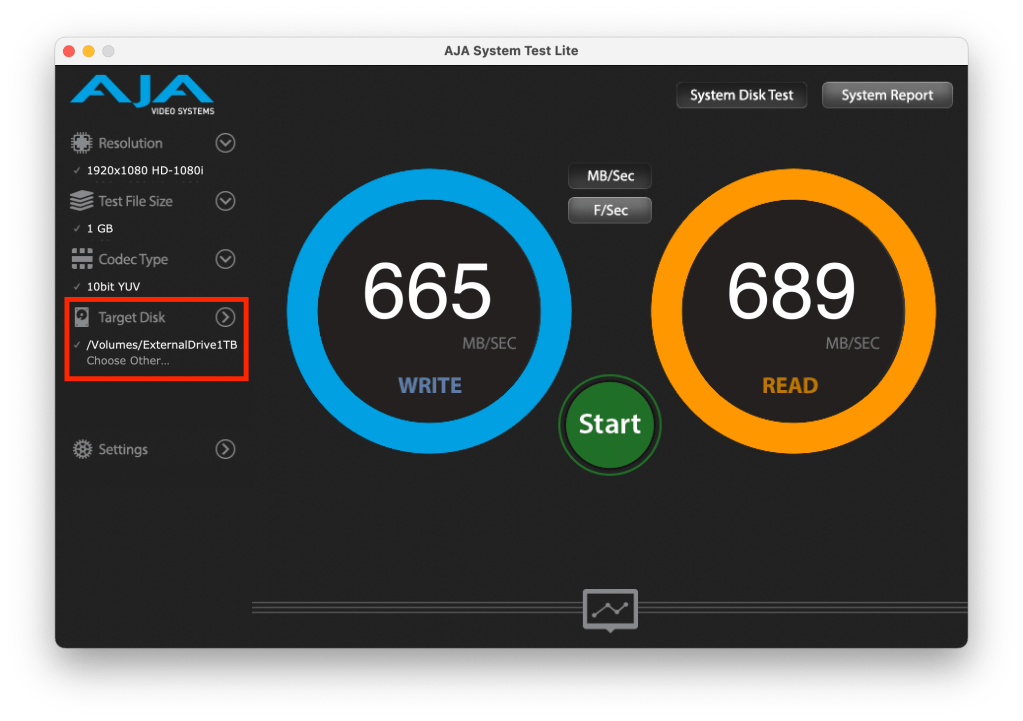
If you have an existing drive you should test the read/write performance before installing the game on it or creating a symlink for the Electronic Arts folder. Download a free app from the Mac App Store, AJA System Test Lite, and run the test on your internal drive and then run it on the external drive to get a comparison. If you use a USB multi hub run the test with and without.
What NOT to use:
- HDD (Hard Disk Drive). These are the old style drives which manufacturers have gradually moved away from. HDDs have a spinning disk which the computer reads data from and writes data to (for example, the operating system reads the game data to load it and writes data when applying a patch. Similarly, the game reads the save file to load the save and then writes to the save file when you save). Think of it like a record deck only much smaller. HDDs are still available to buy and are typically very cheap now. They come in two speeds – 5400rpm and 7200rpm. Neither of which are fast by today’s standards. They have a higher rate of failure and can be easily damaged if dropped as they have physical moving parts. If the product description does not specifically state SSD storage then the drive will most likely be a HDD. Do not use one of these.
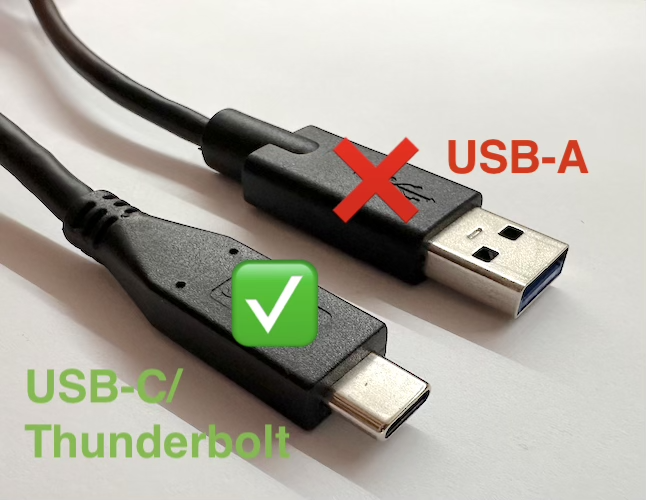
- A USB-A connection
- An adapter cable from USB-C or Thunderbolt (Mac) to USB-A (external drive) to enable a connection. Adapter cables are great and fix the physical problem of connecting an incompatible drive to a computer but are only as fast as the slowest connection.
What to use:
- SSD (Solid-State Drive) or a Flash storage thumb drive with a direct USB-C/Thunderbolt connection and at least USB 3.2 speed with read/write speeds of around 1,050/1,000 MB/s (you will hardly ever actually get these advertised speeds but you will get enough).
- External drive “Transfer” speed and “read/write” speed should not be confused when it comes to running a game through an external drive. The read/write speed is the drive spec. you should be looking at.
Why do I want to use an external drive?
- Pro – to install the game externally so it doesn’t fill up internal disk space on your Mac.
- Pro – if you have two or more Macs running the game through the same Origin/EA ID you can install the game on one external drive and switch it between Macs rather then install the game on each Mac.
- Pro – by creating a symlink you can store your Sims 4 or Electronic Arts folder on the external drive, bypassing the default location in your Documents folder. Especially useful if you have a lot of CC/Mods taking up masses of precious memory and a ton of save files.
- Con – good quality fast SSDs are still a little pricey.
- Con – cannot play the game unless you have the external drive with you.
Best practice and how to use:
- Always wait for your Mac to fully mount the drive before opening Origin/EA App. You should see it either on the desktop or in the Finder sidebar depending on your Mac setup.
- Once mounted, open the drive and navigate to the deepest level folder to make sure the operating system has fully loaded the contents. This is especially important on slower drives.
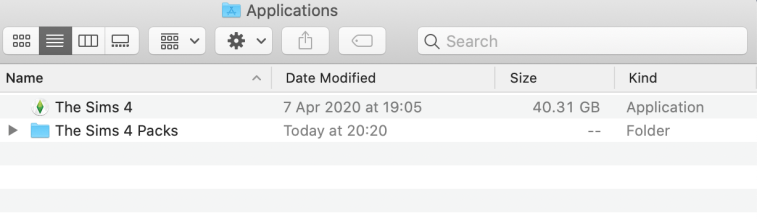
- If using for your game installation, open the Sims 4 Packs folder and then several pack folders and subfolders.
- If using for your Sims 4/Electronic Arts folder, open the saves folder and then the Mods folder (if you use Mods) and a subfolder.
- Never open Origin/EA App without having the drive plugged in. It will default to the internal drive location and tell you you don’t have the game installed.
- If the symlink is setup for the Sims 4/Electronic Arts folder, never launch the game without the external drive plugged in. You will get the game is already running error message and have to trash and redo the symlink.
- Once you’ve found a drive you think will work, always do a little research into the read/write speeds of the drive. If the specs aren’t immediately apparent in the product description you should google the drive and “read/write speeds” to get a proper idea. If the drive is unbelievably cheap the chances are that it’s going to be pretty slow.


 Bluebellflora