
EA are shutting down Origin on April 17th 2025. This means that if you want to carry on playing your EA games, whether you purchased them, redeemed gifted codes, or claimed free titles, you have to use EA App which means you MUST be running macOS 10.15 Catalina or later. If you can’t/won’t update your macOS to Catalina you won’t be able to play.
Who does this affect?
- All Mac users running the following currently compatible operating systems:
- macOS 10.11 El Capitan
- macOS 10.12 Sierra
- macOS 10.13 High Sierra
- macOS 10.14 Mojave
By extension this means that if you want to carry on playing The Sims 3 and The Sims 4 you have to upgrade to Catalina as EA App will be required to authenticate entitlement to the game in your EA account.
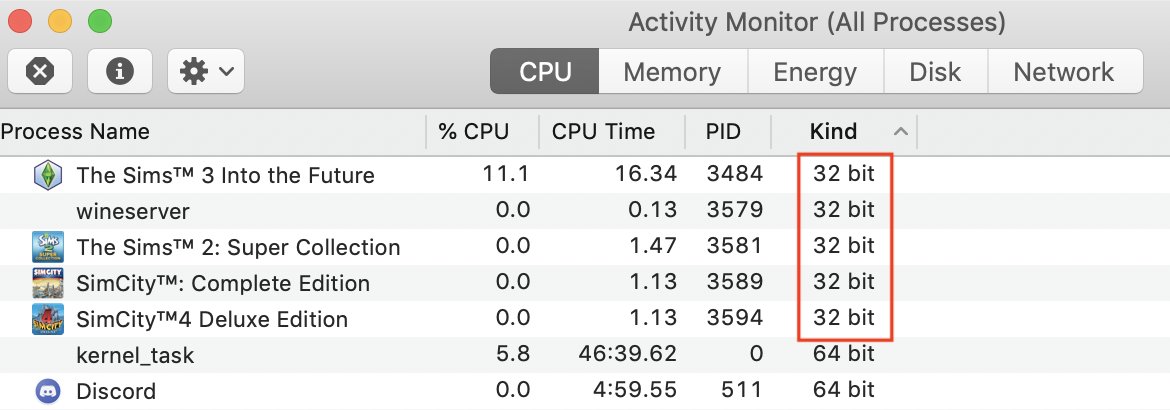
Upgrading to Catalina will mean that your Mac will no longer be able to run 32-bit applications as Mojave was the last macOS to support this. It is therefore important to check if any of the software you currently run, and rely on, in pre-Catalina versions of macOS are 32-bit. You can do this by launching your installed apps and opening Activity Monitor (Applications > Utilities > Activity Monitor) to check:
Catalina will run on all Metal compatible Macs up to Macs released with subsequent versions of macOS, i.e. 2012 – 2019 models:
- MacBook Pro introduced in 2012 or later
- MacBook Air introduced in 2012 or later
- MacBook introduced in 2015 or later
- Mac mini introduced in 2012 or later
- iMac introduced in 2012 or later
- iMac Pro
- Mac Studio introduced in 2022 or later
- Mac Pro introduced in late 2013 or later
For a full list of compatible Macs see Apple’s support page.
What if I need to still run 32-bit apps or want to stay on a pre-Catalina OS but also want to play my EA games?
You have a few options available:
- Partition your internal hard drive:
- use Disk Utility to partition the drive and install Catalina on the new partition. Make sure you allow enough space on the partition to include Catalina, around 12.5GB, EA App, around 1.5GB, and the games you want to play. As an example – the Sims 4 base game is currently around 24.5GB. All Packs and Kits to date amount to around 46.5GB. You would therefore need to allocate at least 85GB to the Catalina partition and this is not accounting for future DLC releases and any other games, plus spare space. 100GB would be the minimum partition allocation.
- Install Catalina on a bootable external drive. Apple are making this harder to do in current and future versions of macOS but you should still be ok with pre-Catalina versions of macOS.
- Install Windows in a Boot Camp partition and play in Windows instead of macOS. This is only an option if your Mac is an Intel machine and not Apple silicon (M-series ARM Macs) but if you are running pre-Catalina macOS your Mac will be an Intel machine as Apple silicon was released in 2020 and Catalina was released in 2019.
If you have any questions or need any further help upgrading to Catalina or creating a partition on your Mac the best place to ask is in my Discord server – https://discord.gg/EB9hZBDx34

 Bluebellflora