External Drive not showing in Origin

Edit July 2023 – this issue is now fixed. See this post for the update.

If you’re trying to install your game to an external drive you may have issues if you’re running macOS 10.15 Catalina or later. Here are quick steps on how to successfully install your game to an external drive:

1.  In System Preferences > Security & Privacy > Privacy click on Full Disk Access and add Origin if necessary.

2. Whilst in the Privacy tab make sure Origin is showing in Files and Folders

3. Open Origin and go to Preferences > Installs & Saves > Game Library Location and click on Change Folder

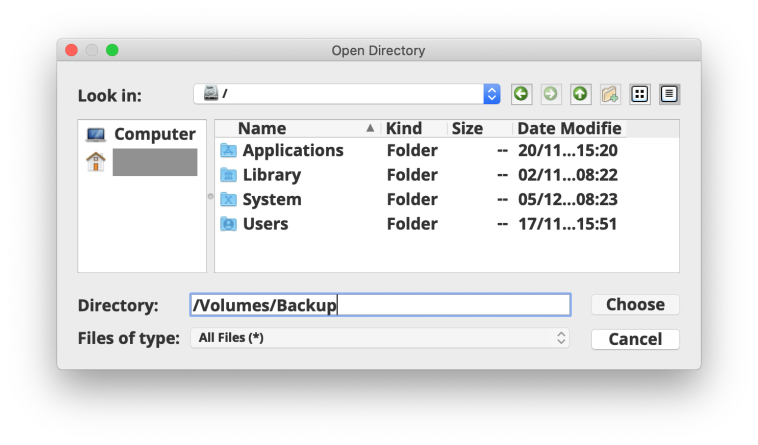
4. On the left menu click on Computer then double click on the ‘/‘ that appears next to a picture of your hard drive. You should see four folders – Applications, Library, System, Users

5. In the field at the bottom, where it says Directory, type in /Volumes/[the name of your external] then hit Enter/Return or click Choose.For example, my external is called Backup so the file path is /Volumes/Backup

6. The window will disappear and reappear again but you may not see your external. That’s ok, quit Origin then reopen it. You should get a Gatekeeper message popping up asking for permission to access files on a removable volume. Just click Ok

7. Now repeat steps 3 to 5 and you should see the contents of your external in the window

Sims 3 64-bit – installing Store content, Exchange items and CC and packs not showing in Launcher

There are lots of threads and posts highlighting the issues with installing external content into the game since the Sims 3 64-bit was released. There have ALWAYS been issues installing content through the Launcher, this is nothing new, but after having done some proper testing and actually understanding what is going on with this updated version I can post about it. I also have this instructional post about how to successfully install Store content separately.

Why is this happening?
Essentially the Launcher and Origin are not talking to each other properly. An Installer Data folder is not being created in Macintosh HD⁩ > ⁨Users⁩ > ⁨[UserAccount] > ⁨Library⁩ > ⁨Application Support⁩ > ⁨Origin⁩. This folder is important because it stores the preference files associated with your Origin account for the base game and installed packs

  • If the Installer Data folder does not exist, and it does not contain the .plist files for your base game and downloaded packs, they will not show in the Launcher.
  • If the base game does not show in the Launcher then it is not possible to install Store/Exchange/CC items.
  • If Store/Exchange/CC items require EPs or SPs to function then it will not be possible to install that content without the relevant pack showing as installed in the Launcher.

Where can I look for the Installer Data folder?
In Finder click on Go in the menu bar then Go to folder… In the window copy and paste the following then press Go:
~/Library/Application Support/Origin
The Origin folder will open.

How do I fix it?
Firstly, navigate to the Origin folder as above and create a new folder called Installer Data:
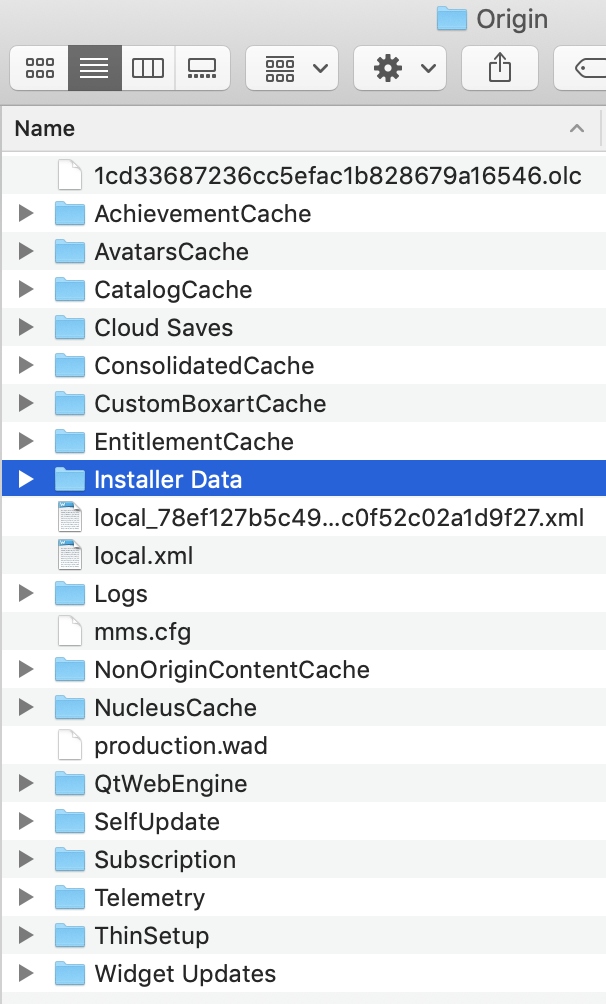
Then:

Base game not showing in the Launcher:

  • Right click the game in your Origin games library and select repair. This will create a base game .plist file in the Installer Data folder resulting in the base game showing in the Launcher.

Expansion and Stuff Packs not showing in the Launcher:

  • Open the Sims 3 Packs folder in your Applications folder, or wherever your Origin games are installed to:
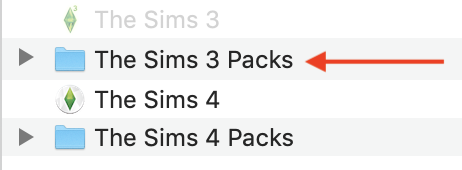
  • You will see a folder for each owned pack labelled EP and SP followed by a number. Open each pack folder and trash the GameData folder:
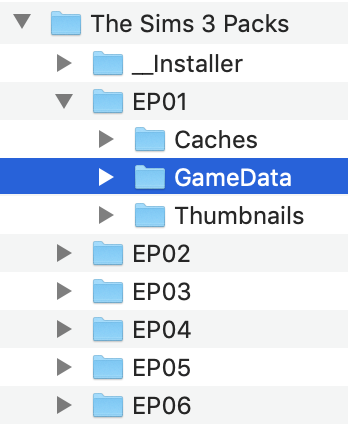
  • Open Origin and re-download your packs. The .plist files for each Pack should now be in the Installer Data folder and the Packs should show up in the Launcher.

If you run the Origin reset tool you will need to repeat the steps above.

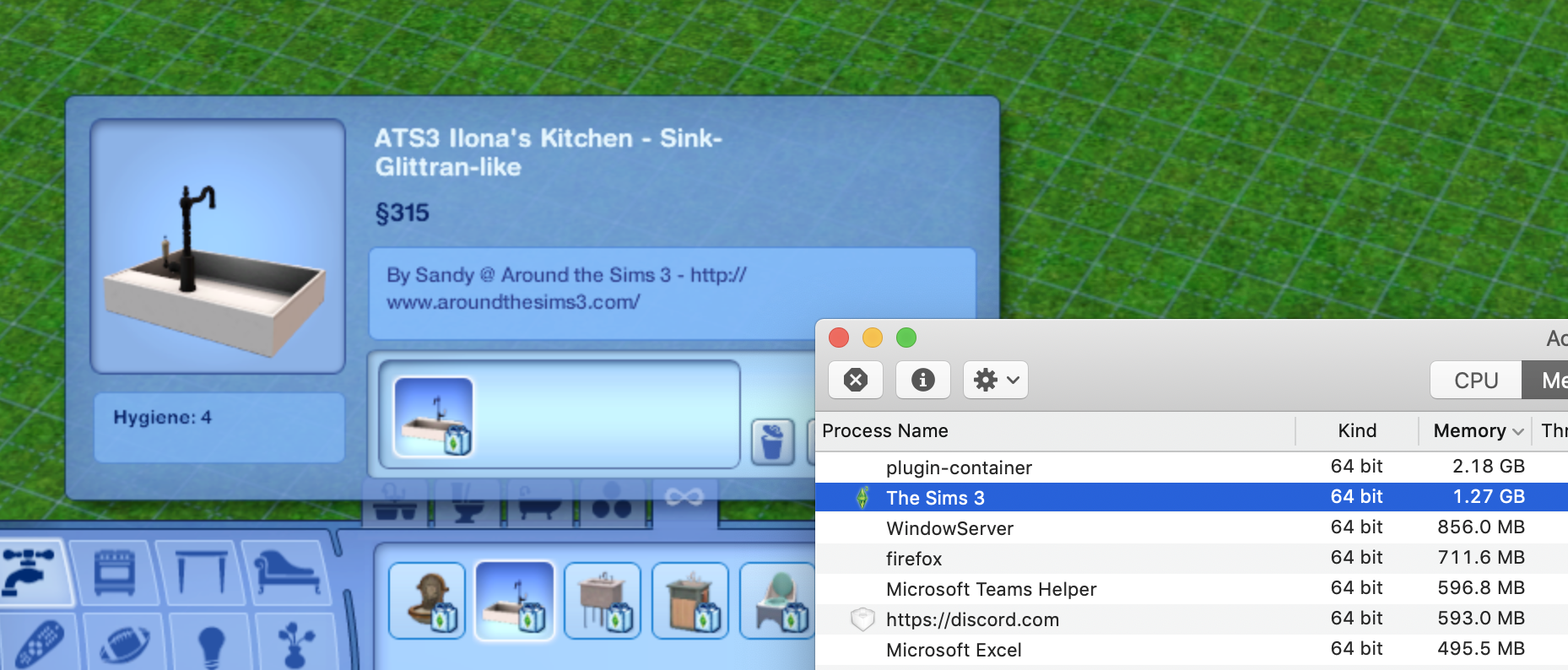
Edit – adding this screenshot to show yes, it is absolutely possible to do this. CC may show up as Store content, Store content may not actually show as Store content in the catalogue but it does show. Make sure you are following the instructions fully 🙂
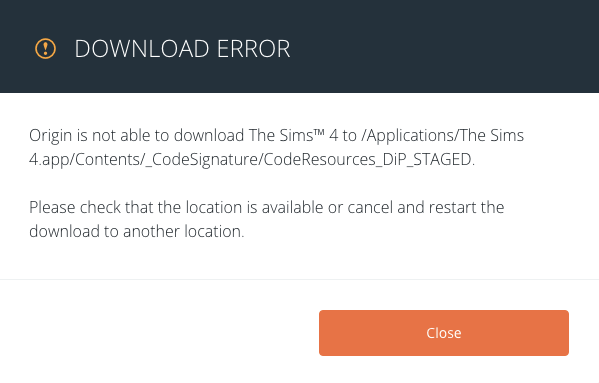
DiP_STAGED error when trying to update The Sims 4

The DiP_STAGED error that can show up when trying to patch your game seems to be caused when a user tries to update the game in a different user account on their Mac than the one where the game is installed to. Let me explain:

  1. You have two Applications folder available to you when you are logged in on a Mac:
    1. Macintosh HD/Applications (the system Applications folder)
    2. Macintosh HD/Users/[your user account]/Applications (your specific user Applications folder)
  2. Origin will normally install by default to Macintosh HD/Applications
  3. The Sims 4 will normally install by default to Macintosh HD/Users/[your user account]/Applications
  4. If you are logged into a different user account on your Mac to the one that the game is installed to, you will still be able to play it as Origin is installed in the System Applications folder and the game is played through Origin. However, if you try to update the game in the different user account you will probably encounter the DiP_STAGED error.

Solution:
Make sure you are logged into the user account the game is installed to and update the game there. Occasionally this issue can completely break the game and unfortunately the only answer is to completely uninstall and reinstall the game.